How to Add a Widget to Your Home Screen
Follow this step-by-step guide to add WidgetBee to your iOS Home Screen and link it to your custom widget configurations.
Enter Home Screen Edit Mode
Touch and hold any empty area on your iOS Home Screen until the icons begin to jiggle and the Edit button appears in the top-left corner.
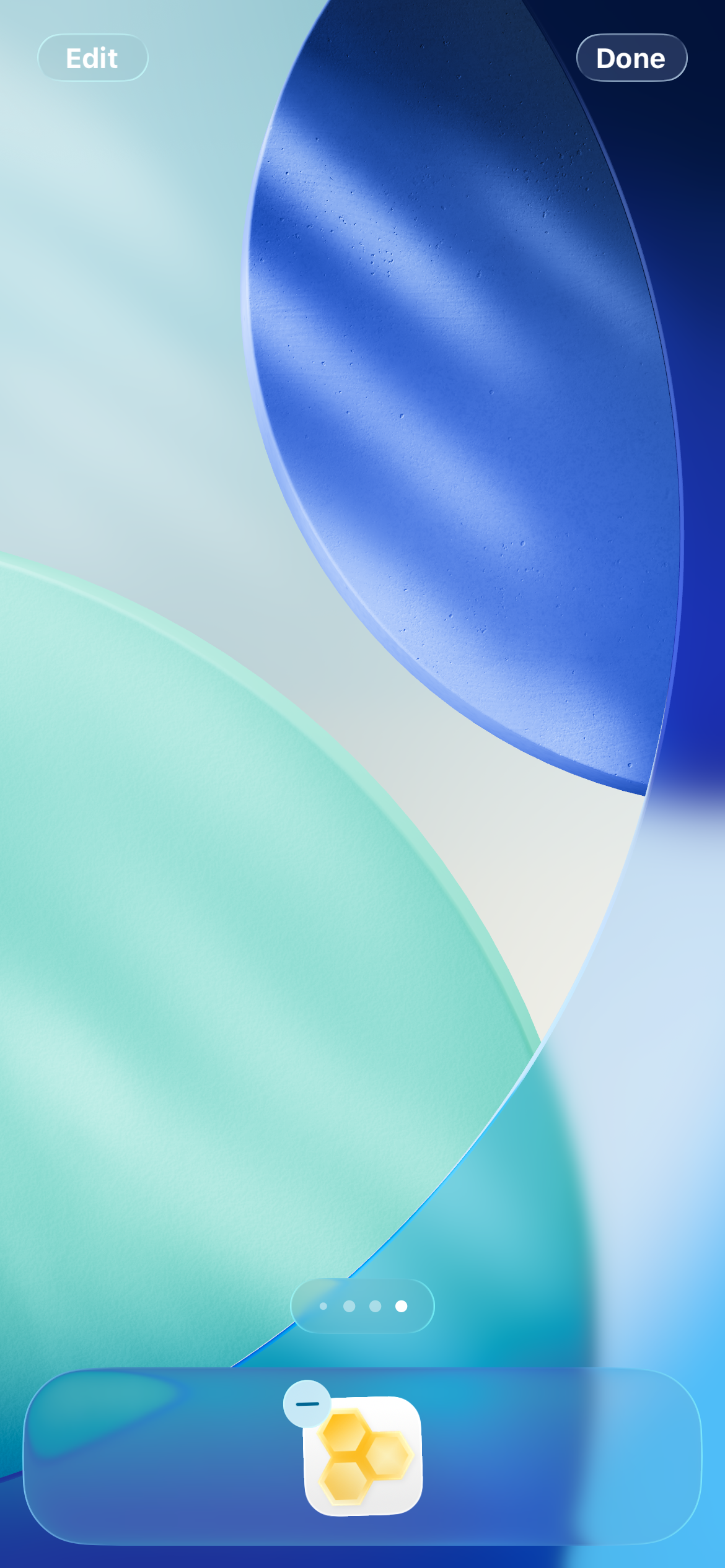
🔍 Tap to enlarge
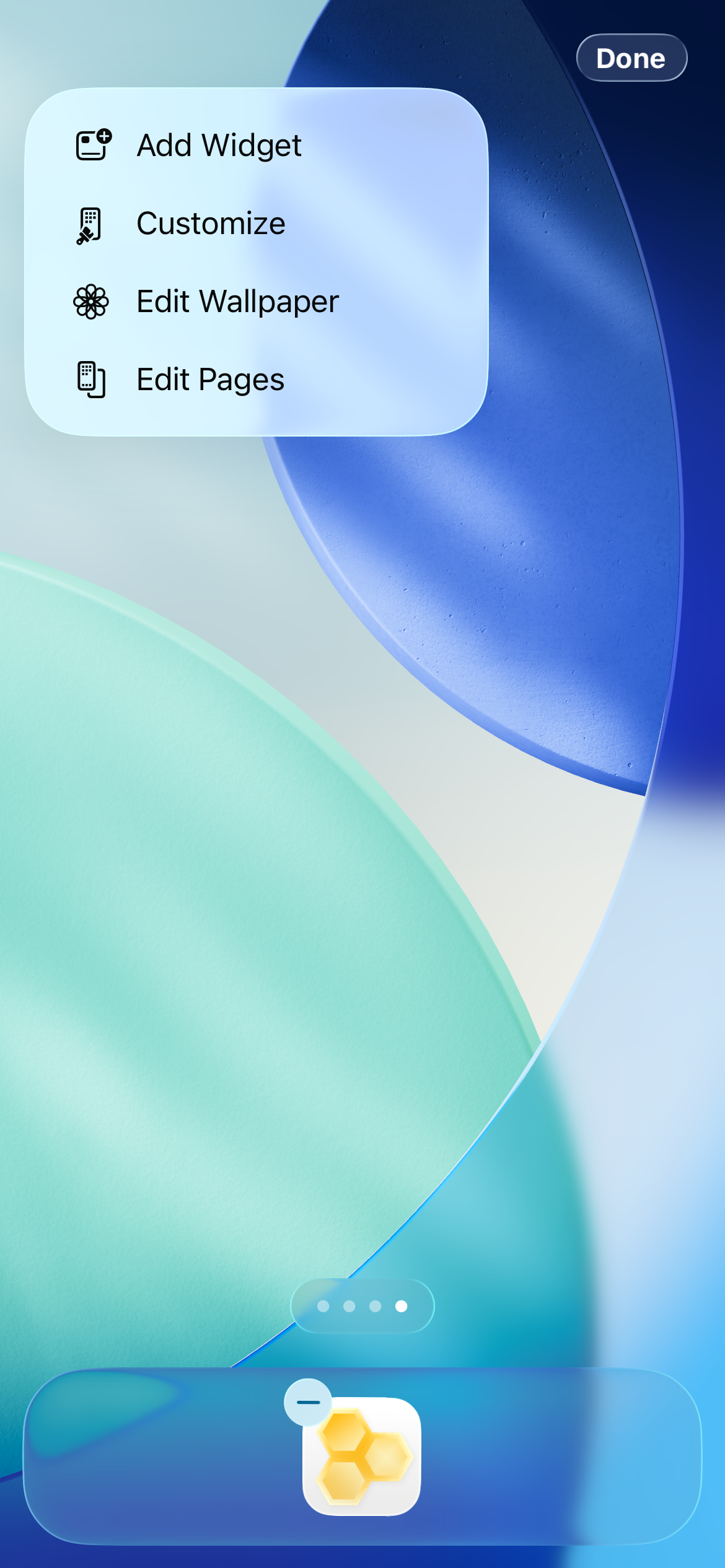
Tap Add Widget
Tap Edit in the top-left corner of the screen and select Add Widget from the drop-down menu to open the widget gallery.
🔍 Tap to enlarge
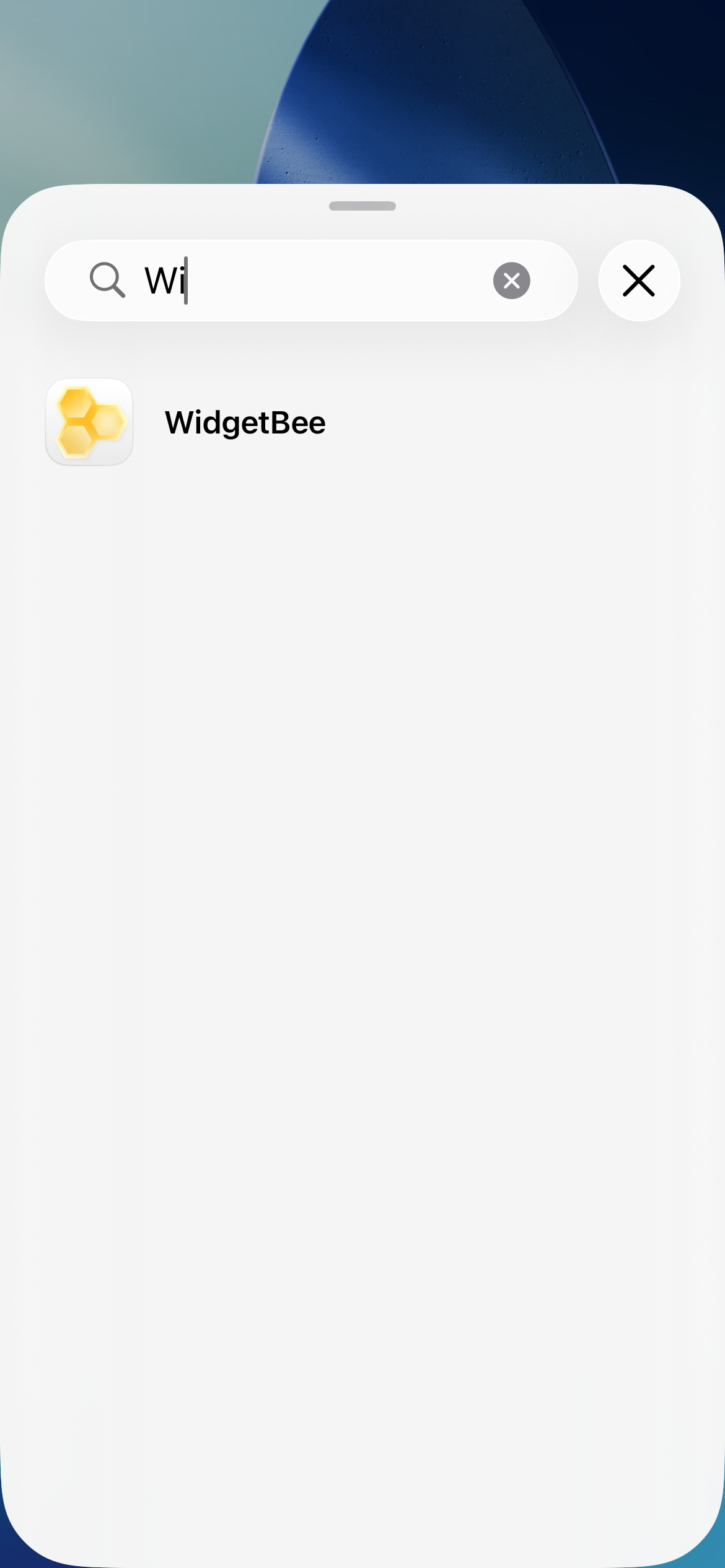
Search for WidgetBee
Use the search bar at the top of the widget gallery to search for WidgetBee, then tap the app icon in the search results.
🔍 Tap to enlarge
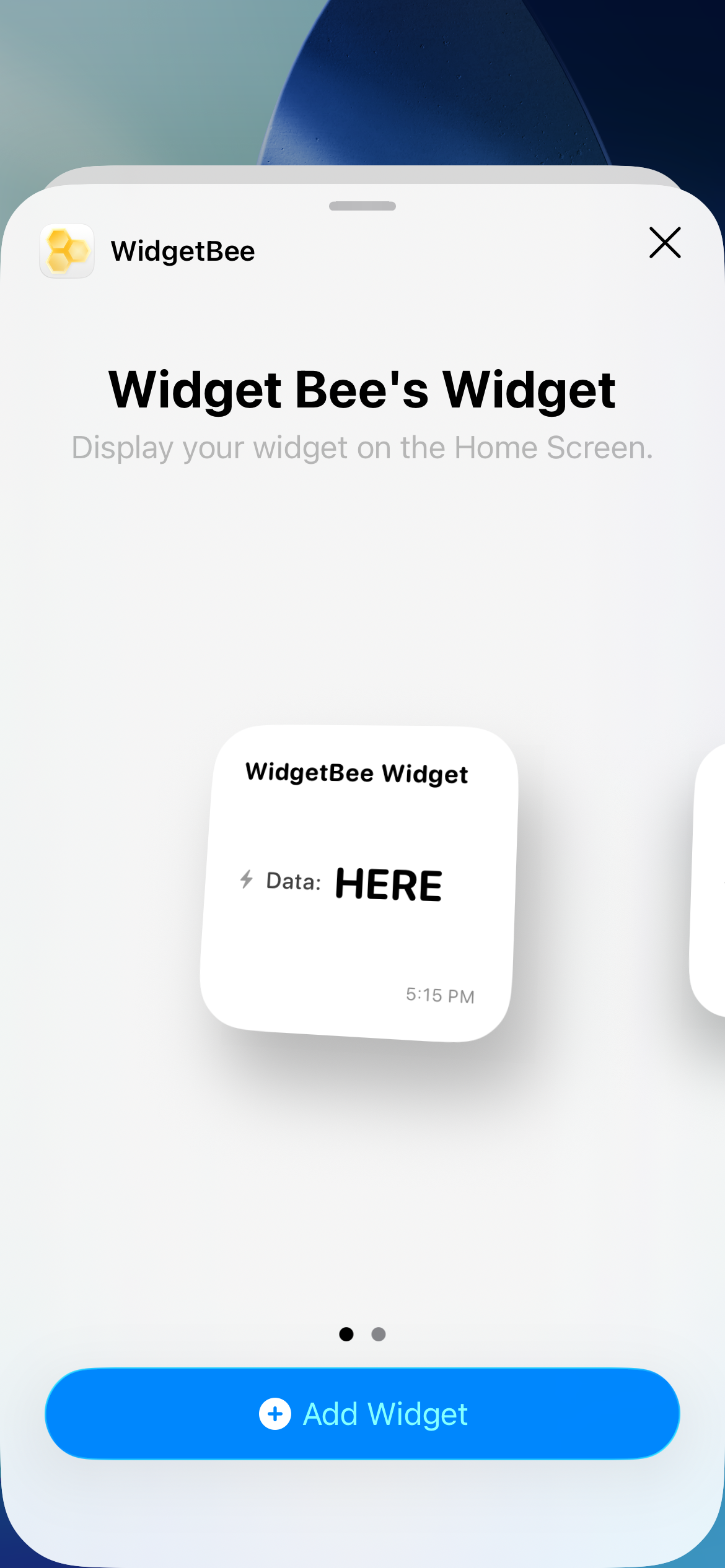
Choose Widget Size
Swipe left or right to preview available widget sizes, then tap the blue + Add Widget button at the bottom.
🔍 Tap to enlarge
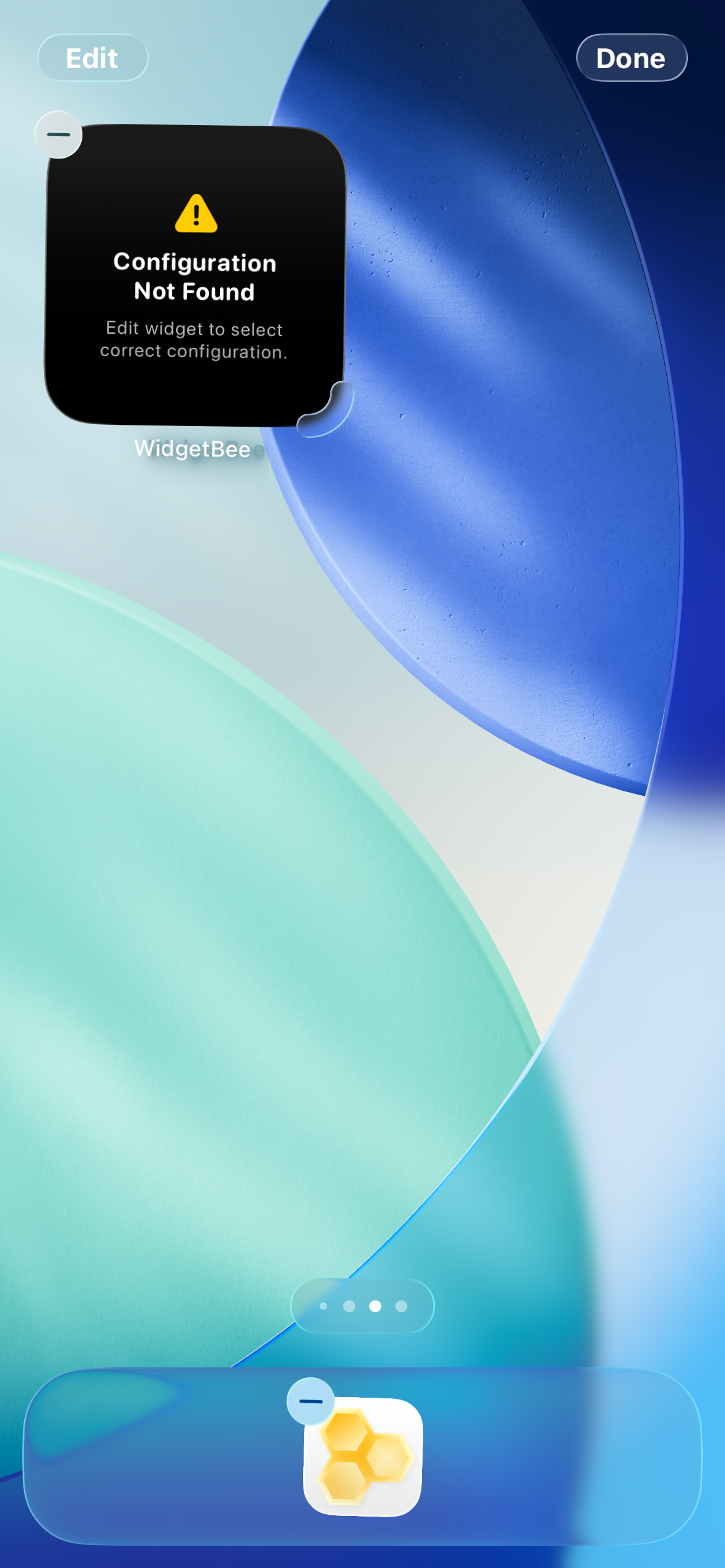
View Initial Placement
The widget will be placed on your Home Screen. Initially, it will display a Configuration Not Found message until linked to a saved layout.
🔍 Tap to enlarge
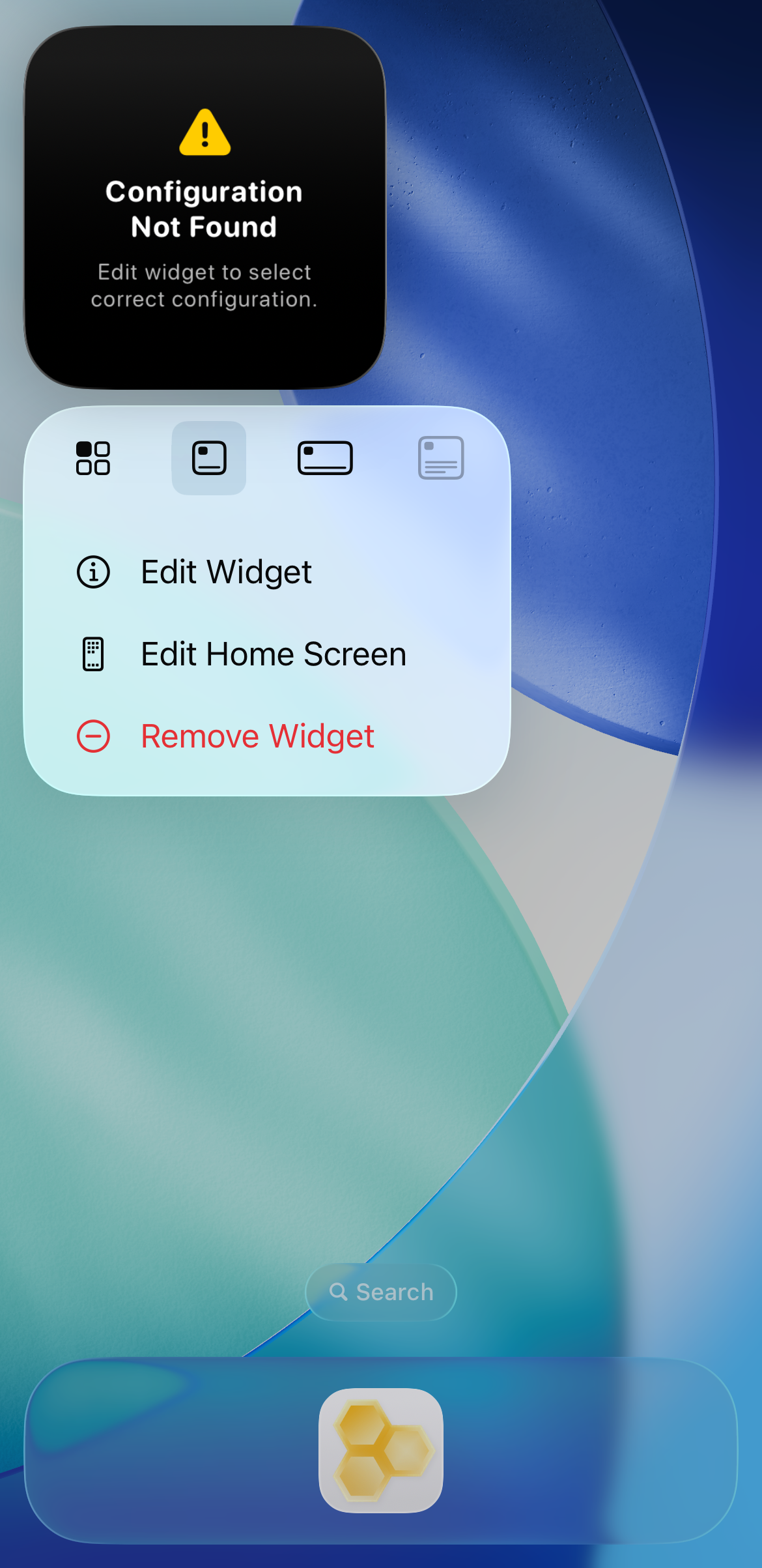
Open Widget Settings
Touch and hold the unconfigured widget to bring up its quick action menu, then select Edit Widget.
🔍 Tap to enlarge
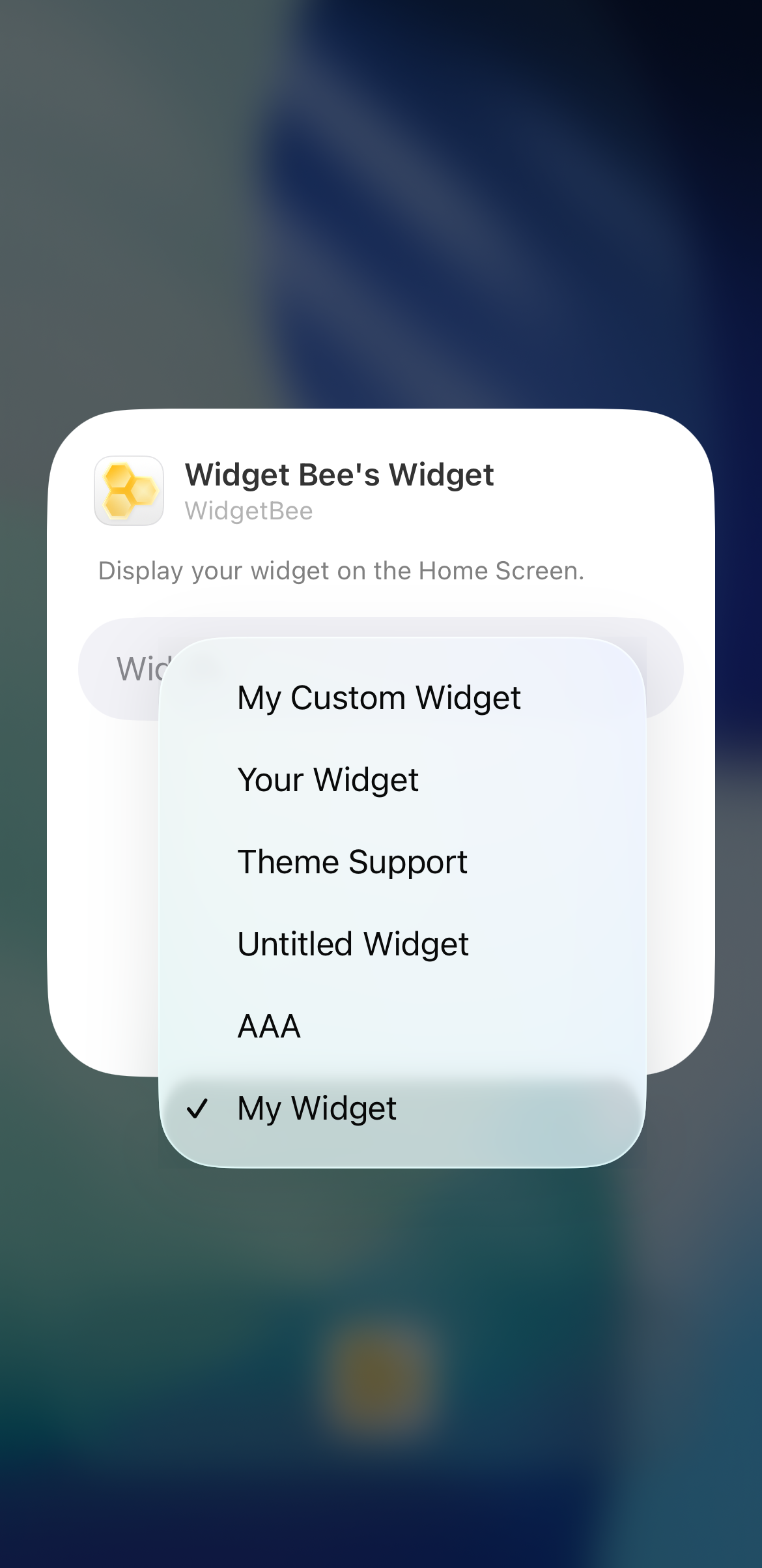
Select Your Widget Layout
Tap the Widget field and choose your desired configuration layout (such as My Widget) from your list of created widgets.
🔍 Tap to enlarge
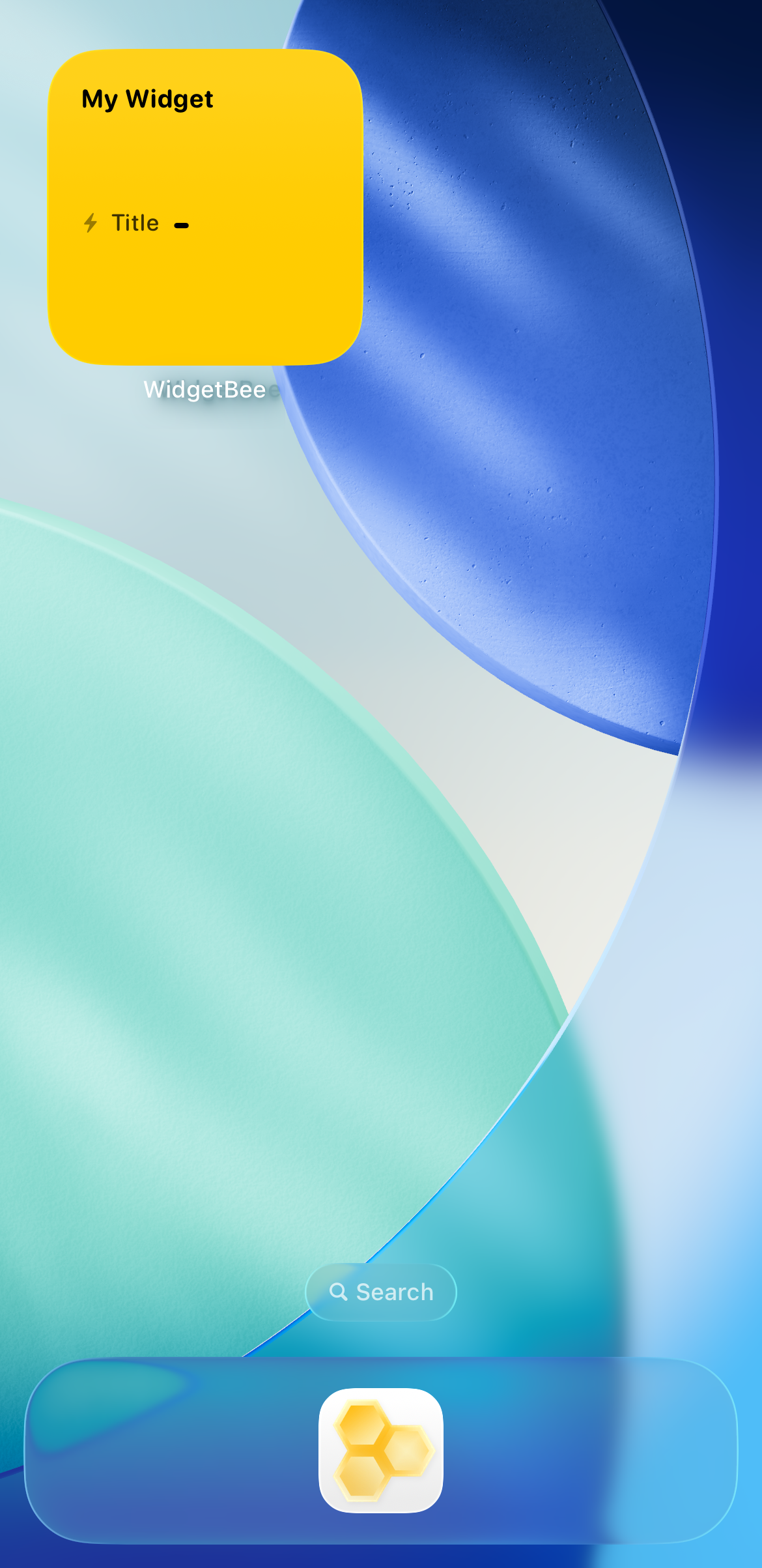
Complete Setup
Tap outside the settings window to return to your Home Screen. Your WidgetBee widget is now fully set up and ready to display live data!
🔍 Tap to enlarge