How to Configure a Widget Row
Learn how to set row titles, adjust text alignment, format values with prefixes and suffixes, and configure empty value fallbacks.
Open Row Configuration
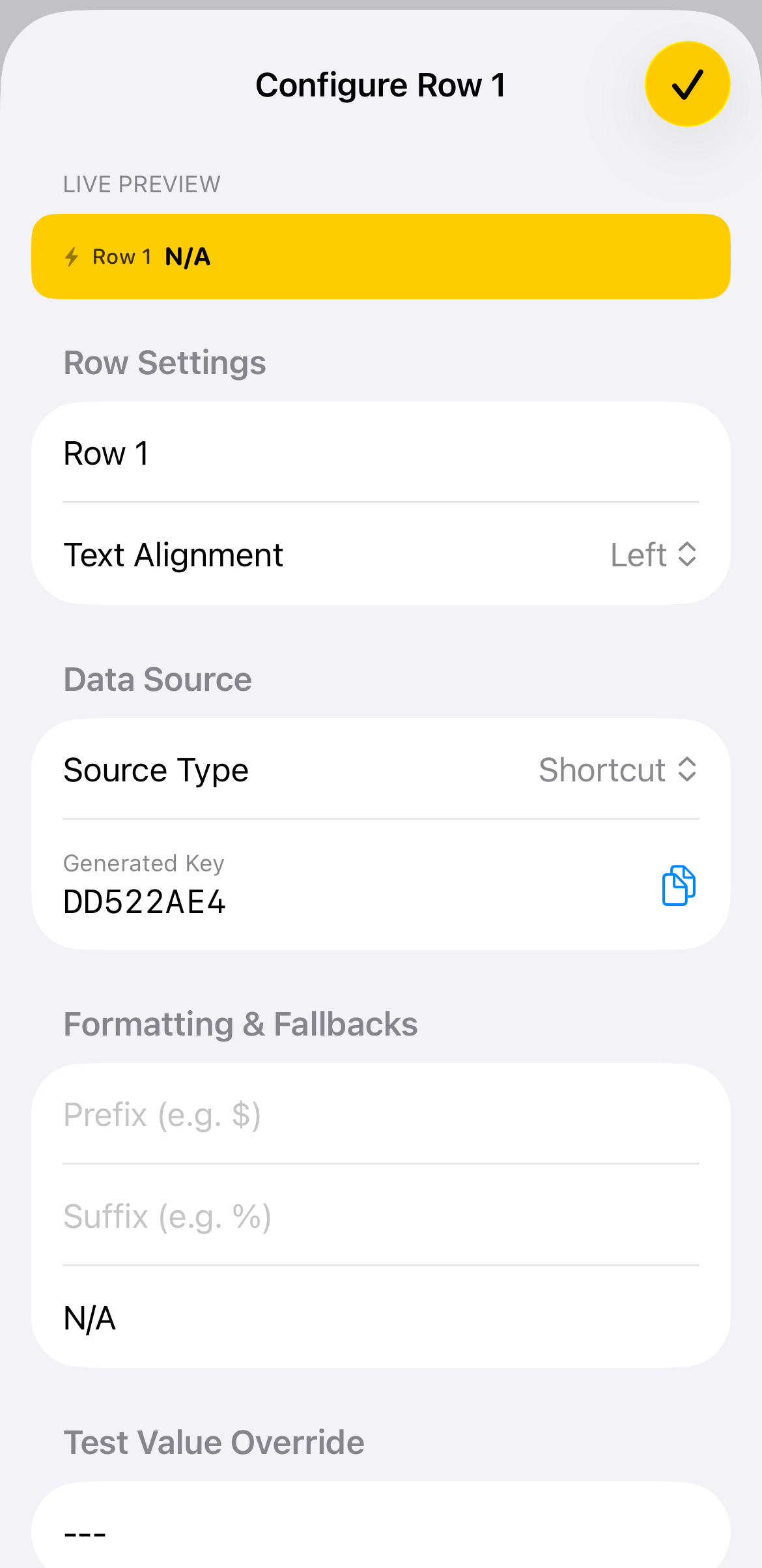
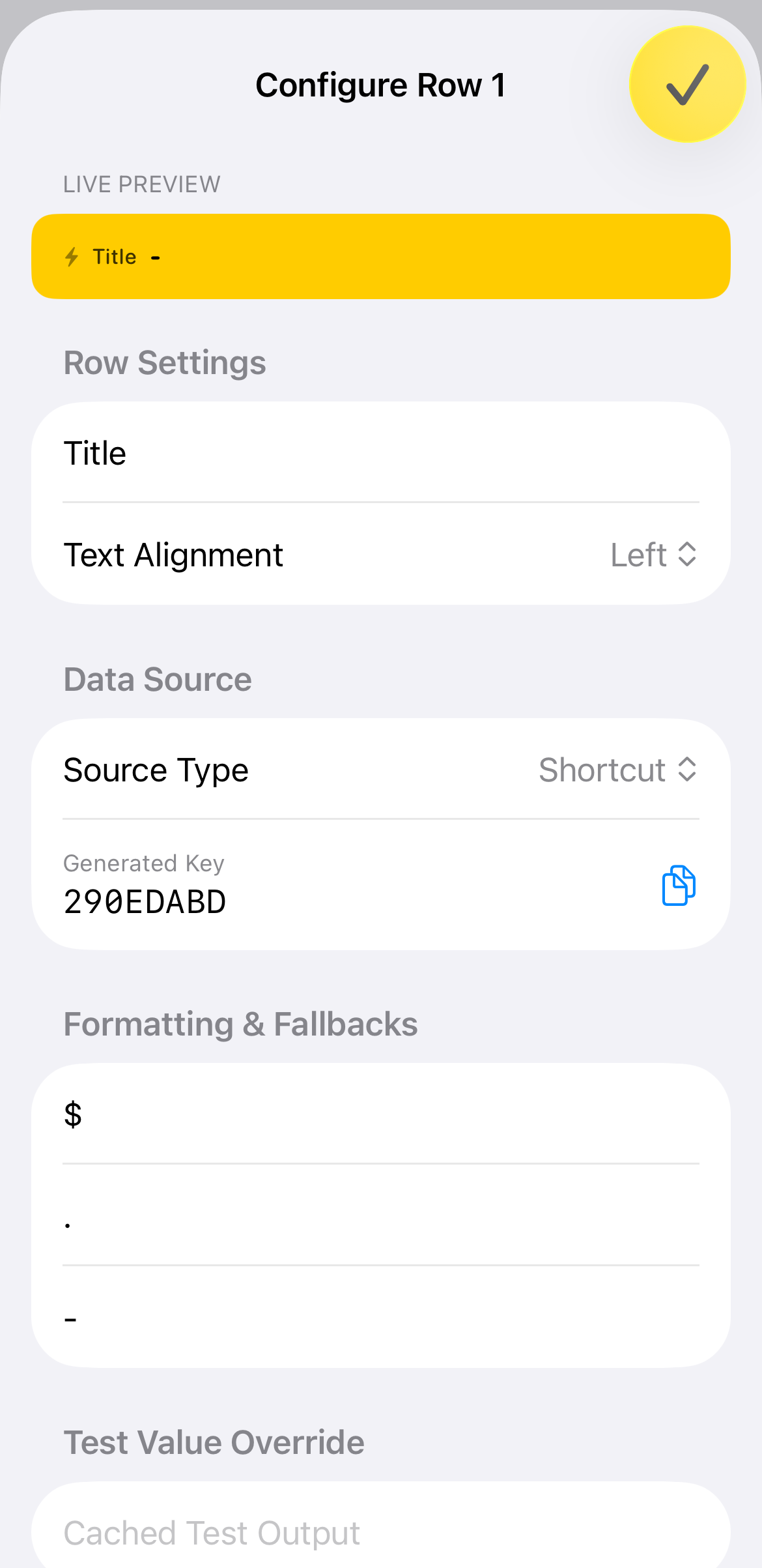
Tap on any row in your widget layout to open the configuration sheet. The top bar provides a Live Preview of how your row will look, while the sections below let you customize its title, data source key, formatting, and test overrides.
🔍 Tap to enlarge
Customize Title and Text Alignment
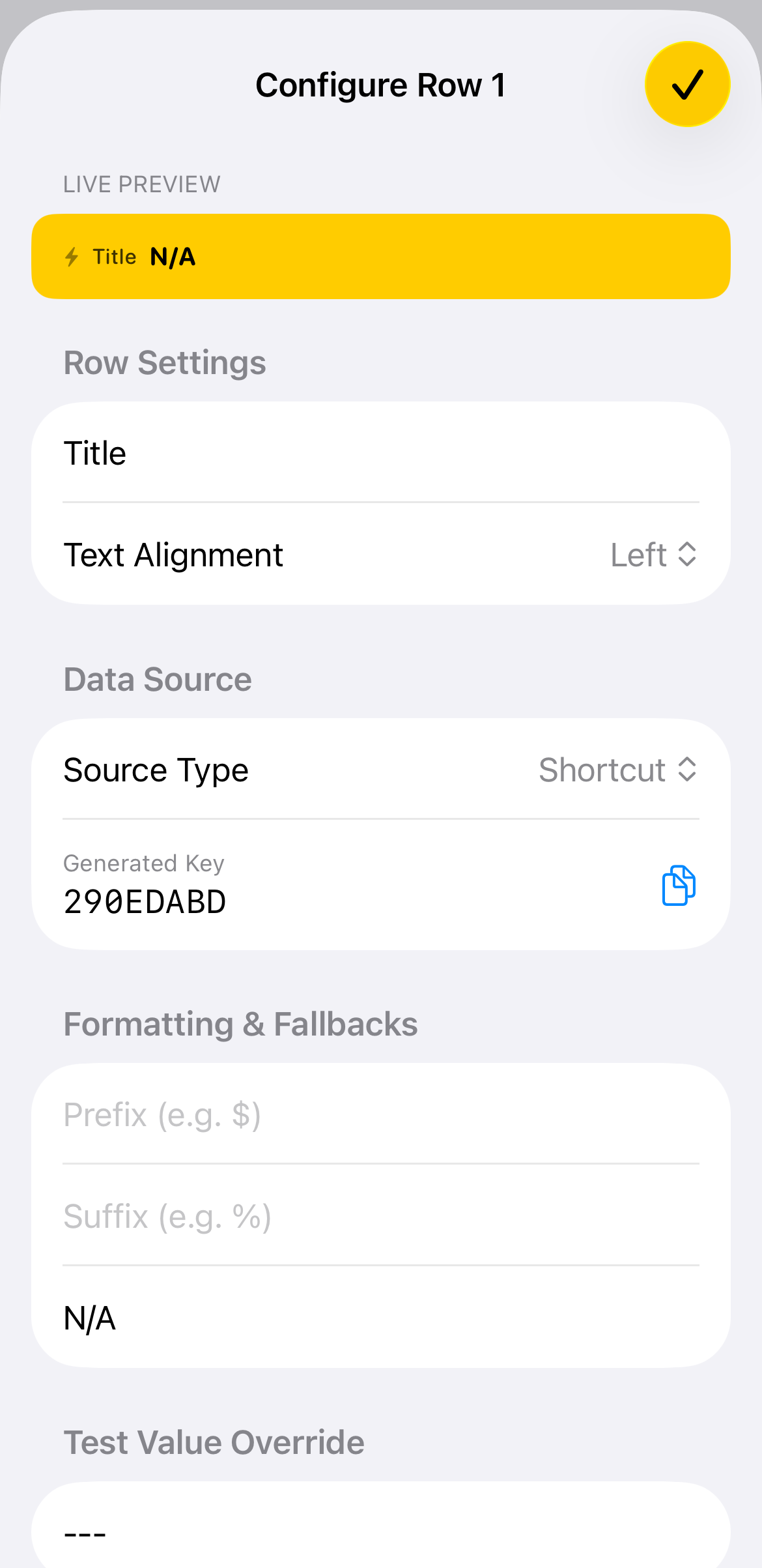
Enter a custom label in the Title field to identify this row on your widget. You can also tap Text Alignment to choose between Left, Center, or Right alignment to match your design style.
🔍 Tap to enlarge
Configure Empty Value Fallbacks
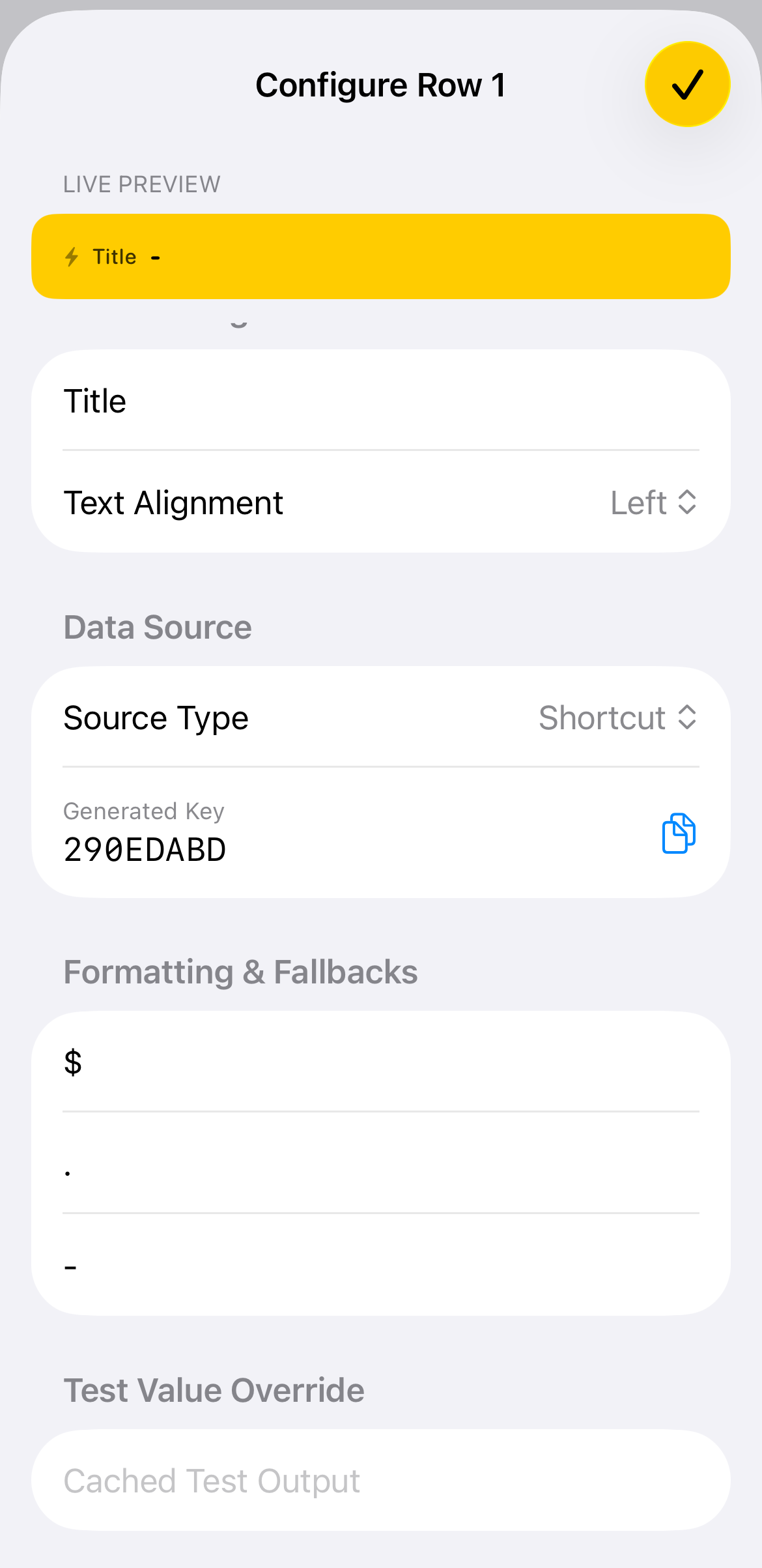
Under Formatting & Fallbacks, choose what displays when no data is returned by your shortcut. Replacing the default N/A with a dash (-) or leaving it blank ensures your widget stays clean even without active data.
🔍 Tap to enlarge
Add Prefix, Suffix, and Test Overrides
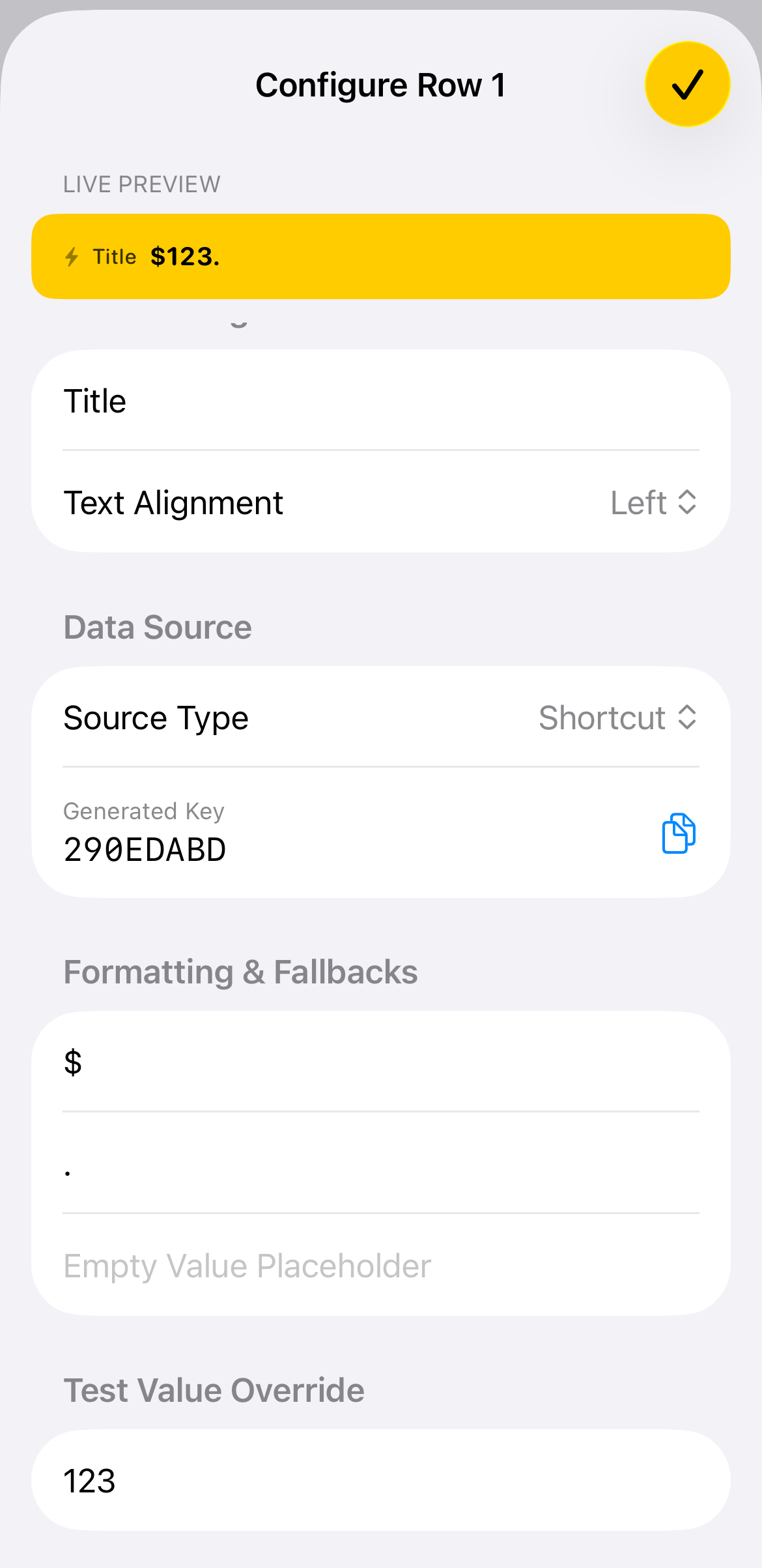
Add a Prefix (such as $) or a Suffix (such as % or .) to automatically wrap incoming values. Use the Test Value Override field to type sample data (e.g., 123) and instantly verify the formatted output in the Live Preview.
🔍 Tap to enlarge
Save Your Row Settings
Check the Live Preview bar at the top to ensure your title, formatting, and alignment look exactly as intended. Tap the yellow checkmark button in the upper-right corner to apply and save your changes.
🔍 Tap to enlarge