How to Set Up Your First Widget
Follow this step-by-step guide to create, customize, rename, and configure rows for your WidgetBee widget.
Create a New Widget
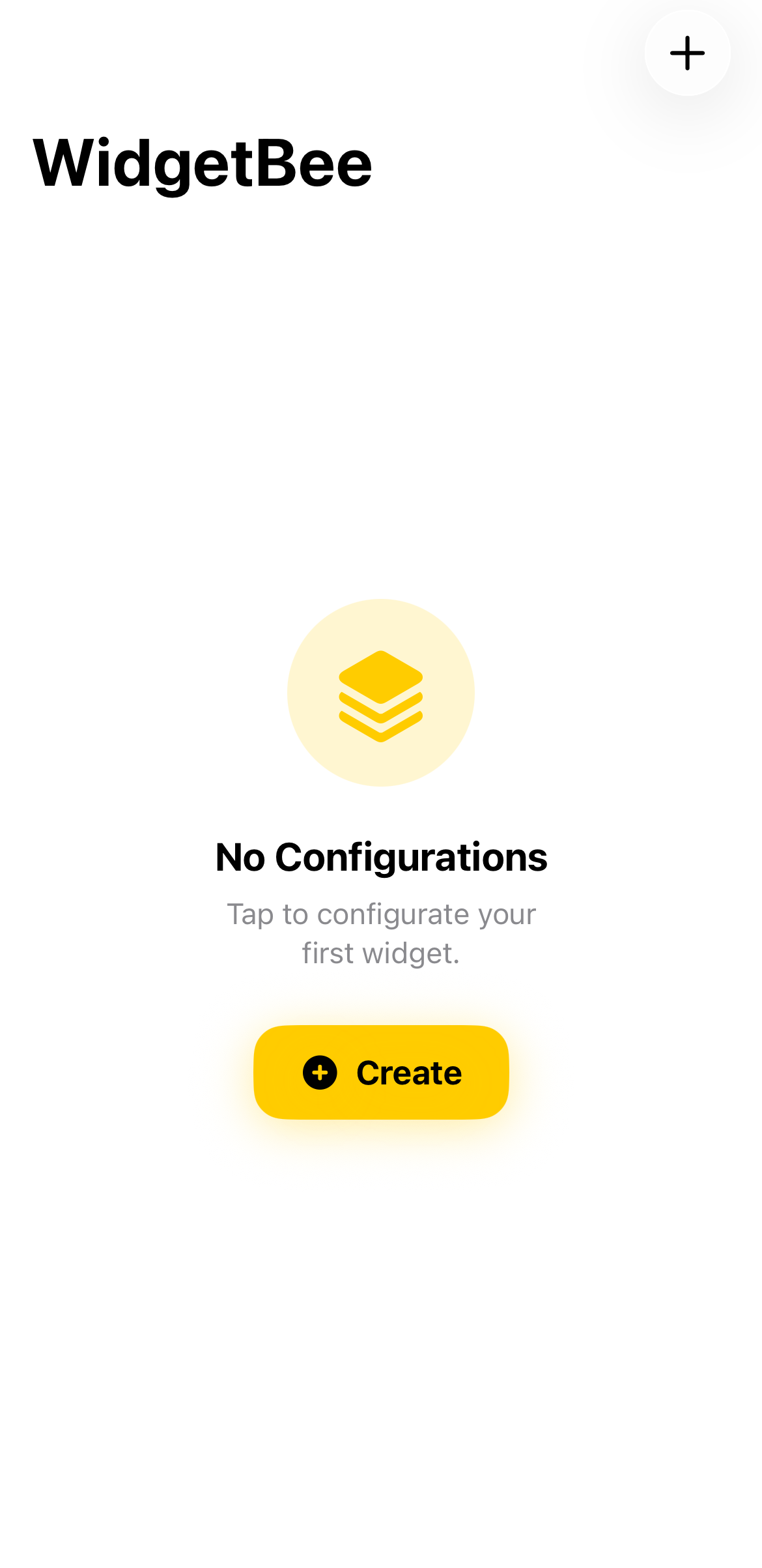
Open WidgetBee and tap the yellow + Create button in the center (or the + icon in the top-right corner) to generate a new widget configuration.
🔍 Tap to enlarge
Rename Your Widget
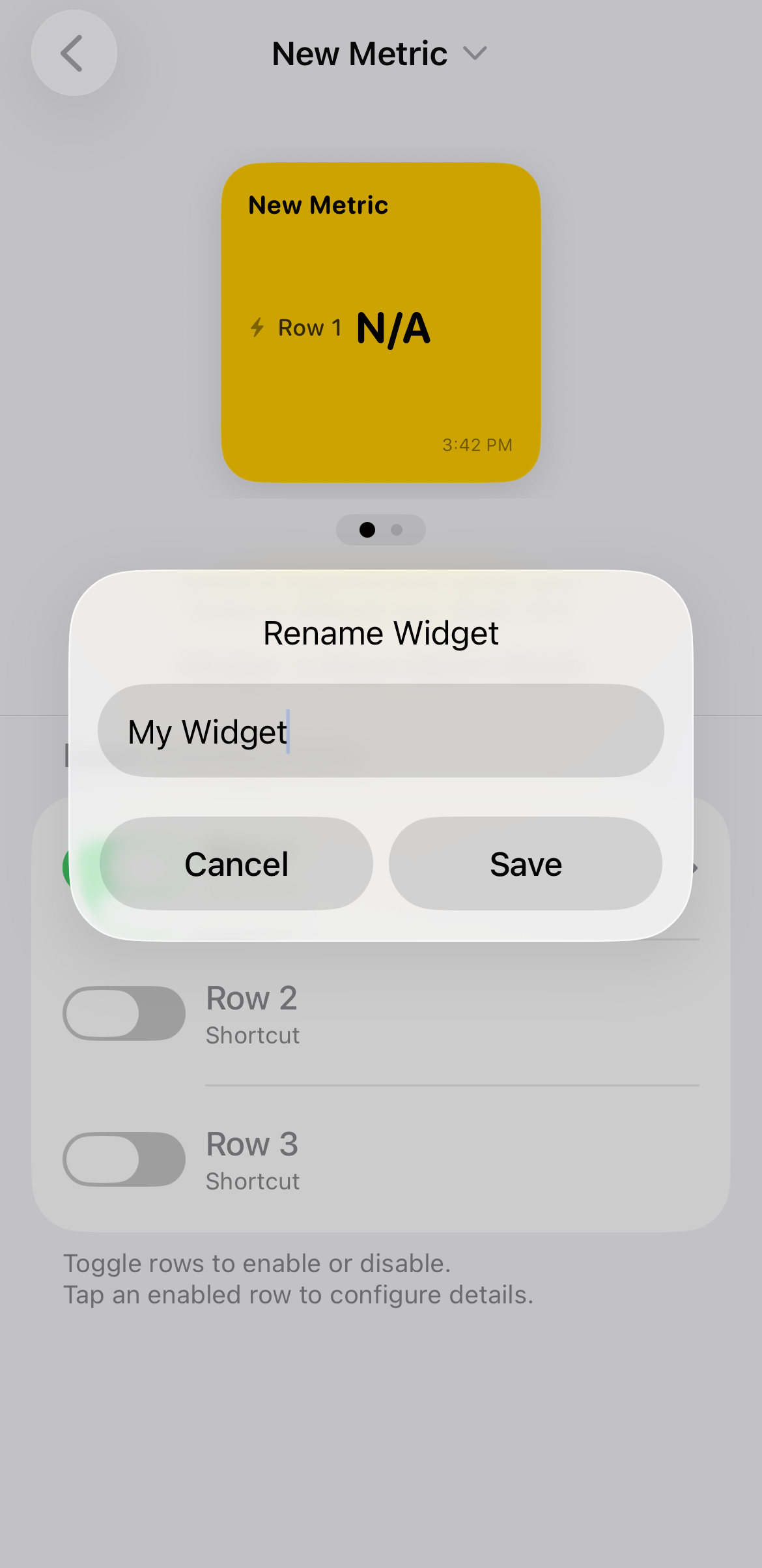
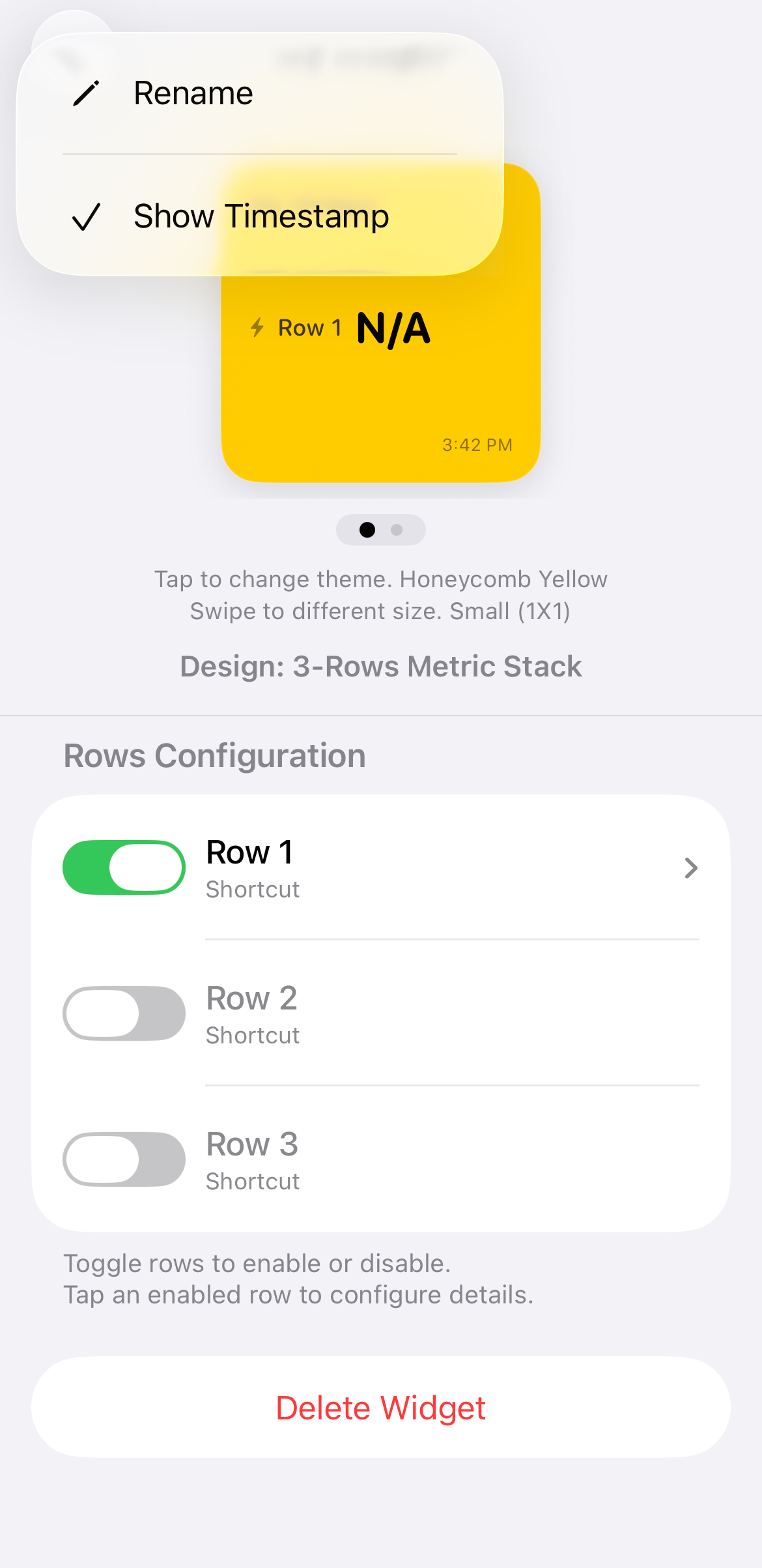
Tap the widget title at the top to open the dropdown menu, select Rename, type in your desired widget name, and tap Save.
🔍 Tap to enlarge
Choose Your Size and Theme
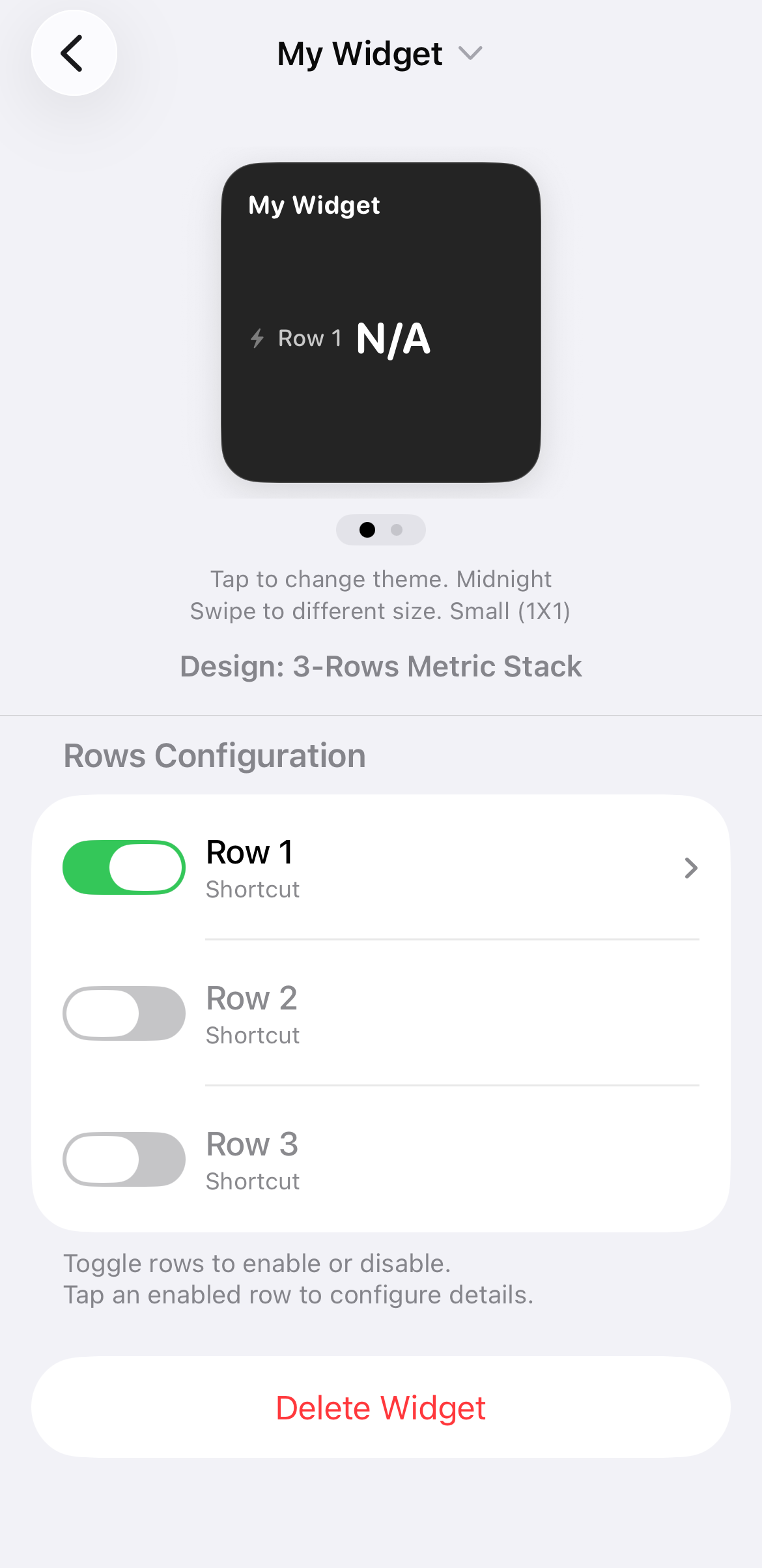
Swipe left or right on the widget preview to switch between sizes (e.g., Small 1x1 or Medium 2x1). Tap directly on the widget preview to cycle through color themes such as Honeycomb Yellow or Midnight.
🔍 Tap to enlarge
Configure Display Rows
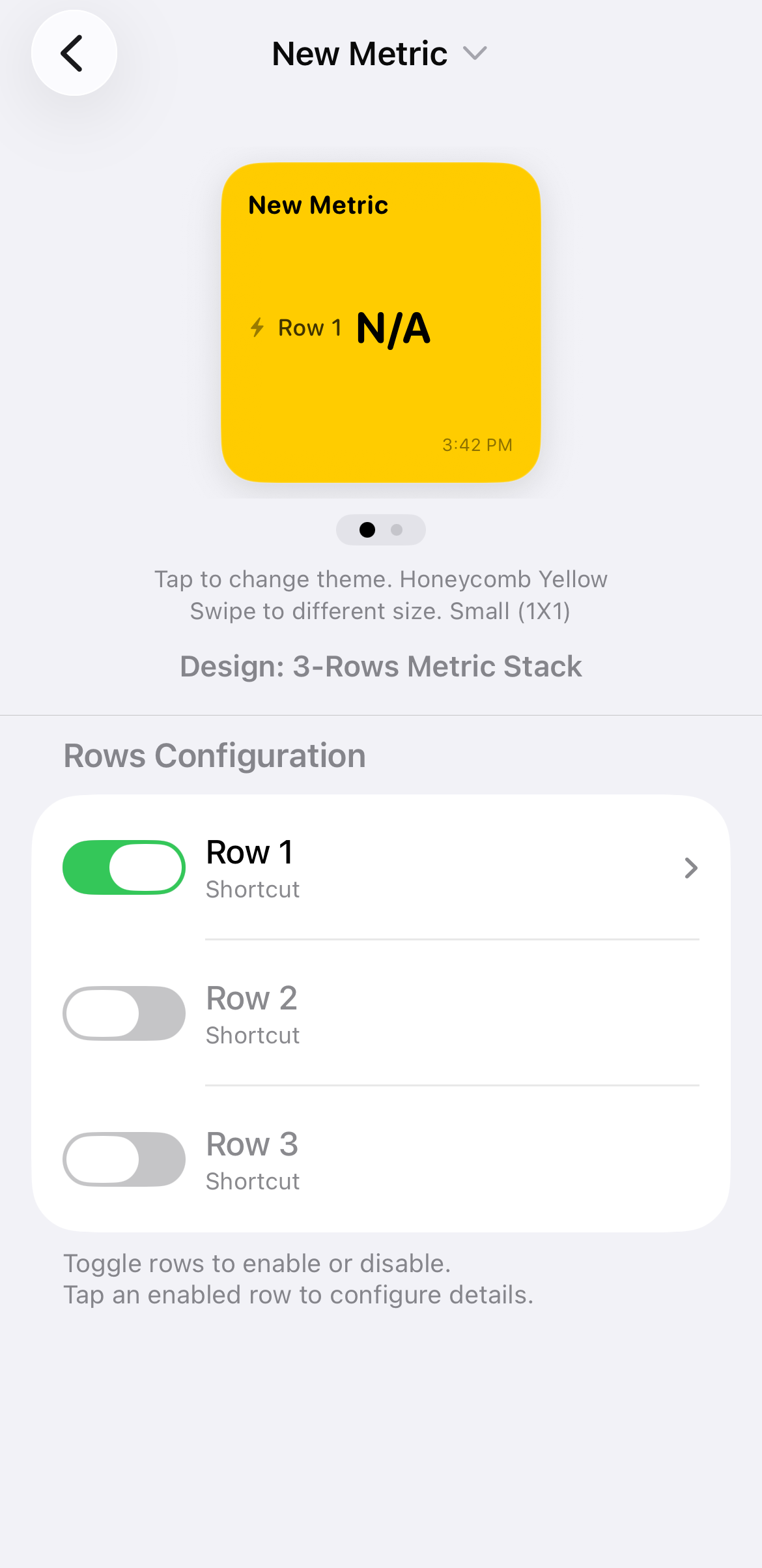
Under Rows Configuration, toggle the switches to enable or disable individual data rows. Tap an enabled row (e.g., Row 1) to assign its shortcut action or data source.
🔍 Tap to enlarge
Toggle Timestamps
Open the top dropdown menu again and check or uncheck Show Timestamp to control whether the last updated time appears on your widget preview.
🔍 Tap to enlarge