How to Update Your Widget by Choosing Widget Data Row in Shortcut
Follow this step-by-step guide to target and update specific widget data rows (such as titles or text fields) dynamically using Apple Shortcut and WidgetBee.
View Current Widget Data Row State
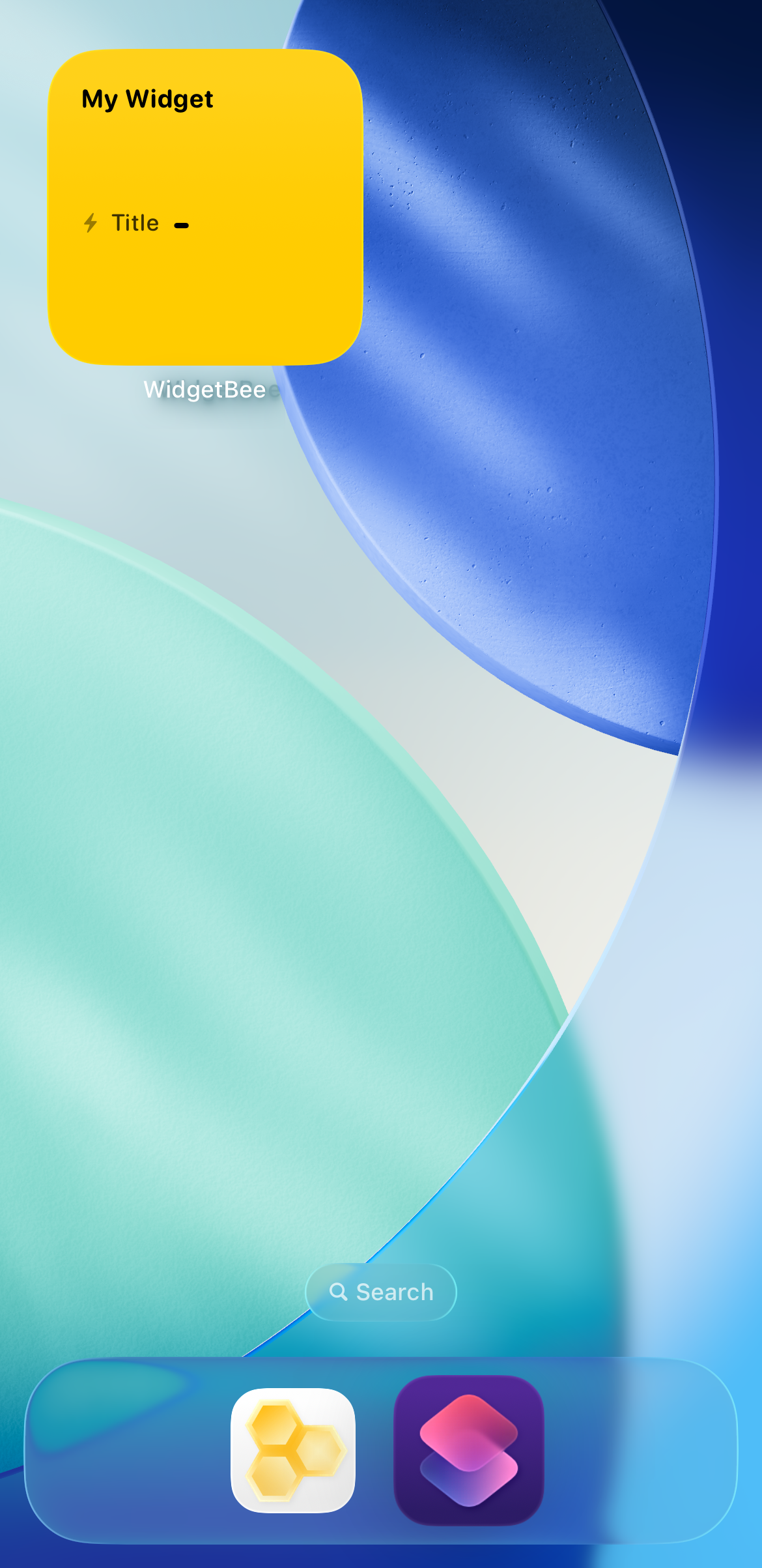
Check your iPhone Home Screen to locate your WidgetBee widget and identify the target data row you want to update (for example, the Title row in My Widget).
🔍 Tap to enlarge
Create a New Shortcut Workflow
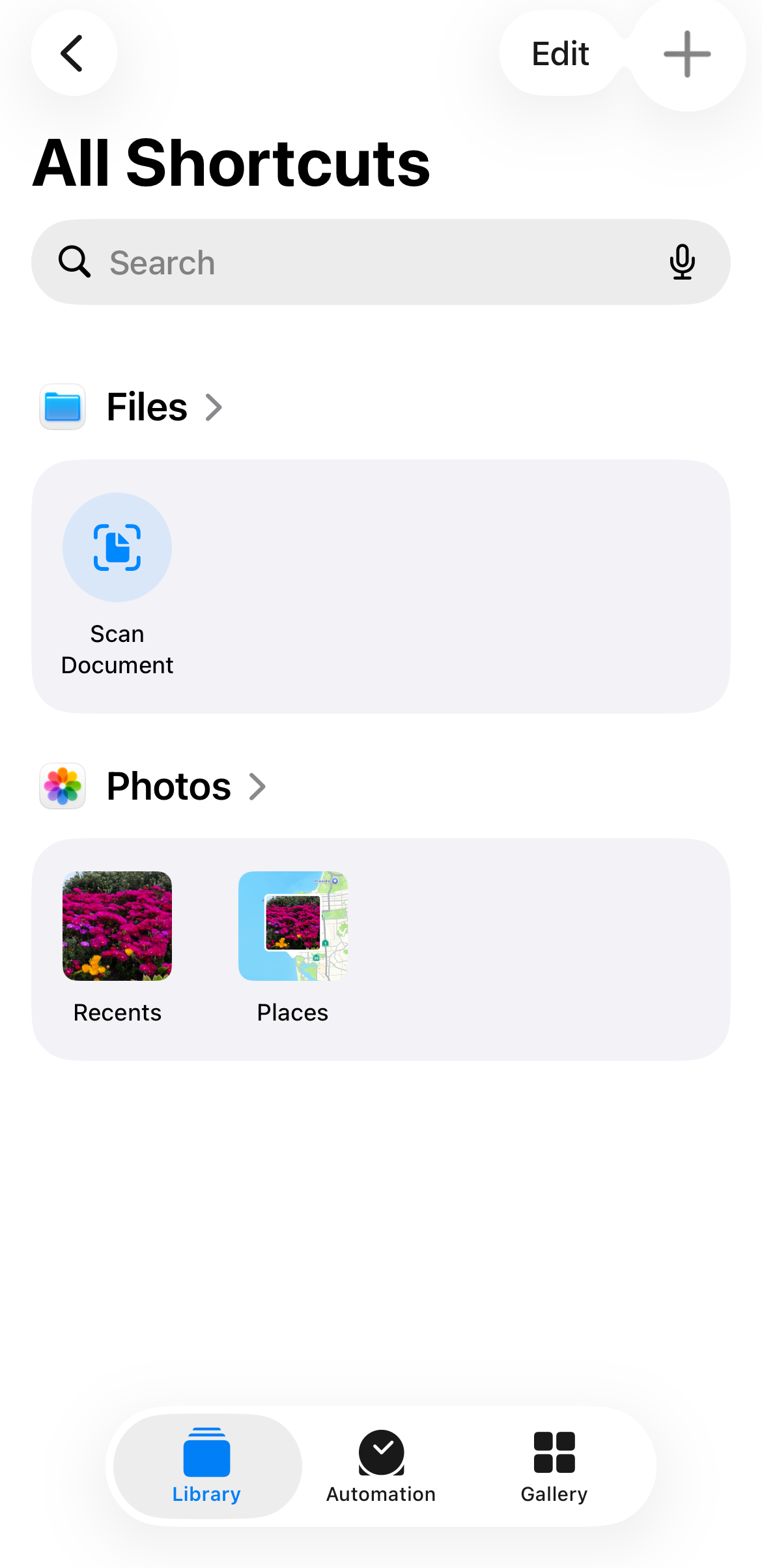
Launch the Shortcut app on your device and tap the + (plus) icon in the top-right corner to open a fresh shortcut builder.
🔍 Tap to enlarge
Select "Update Widget Value" Action
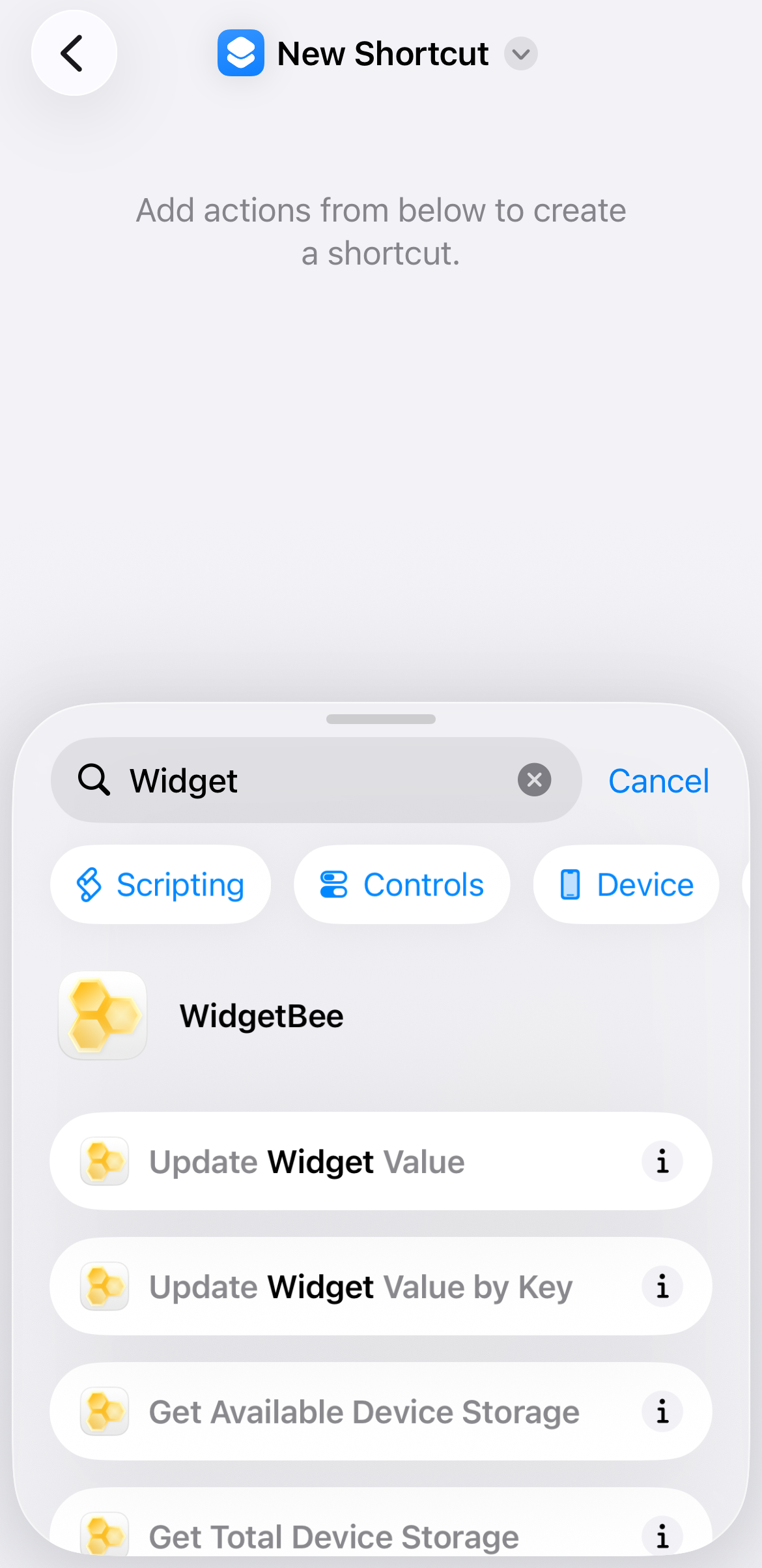
Search for WidgetBee in the actions menu and tap Update Widget Value to add the row-targeting action block to your shortcut workflow.
🔍 Tap to enlarge
Inspect Action Parameters
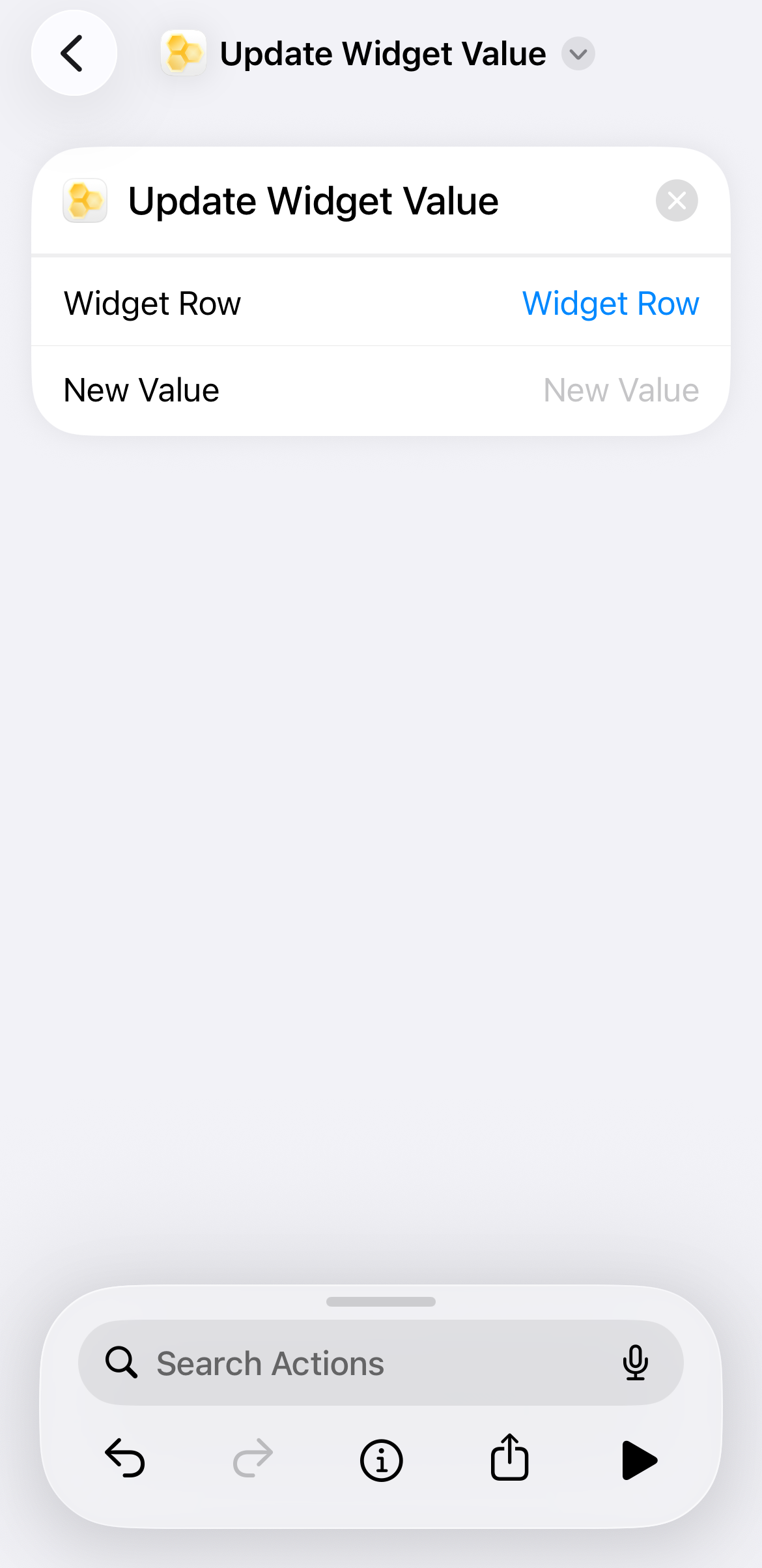
The Update Widget Value block will appear in your editor showing unconfigured fields for Widget Row and New Value.
🔍 Tap to enlarge
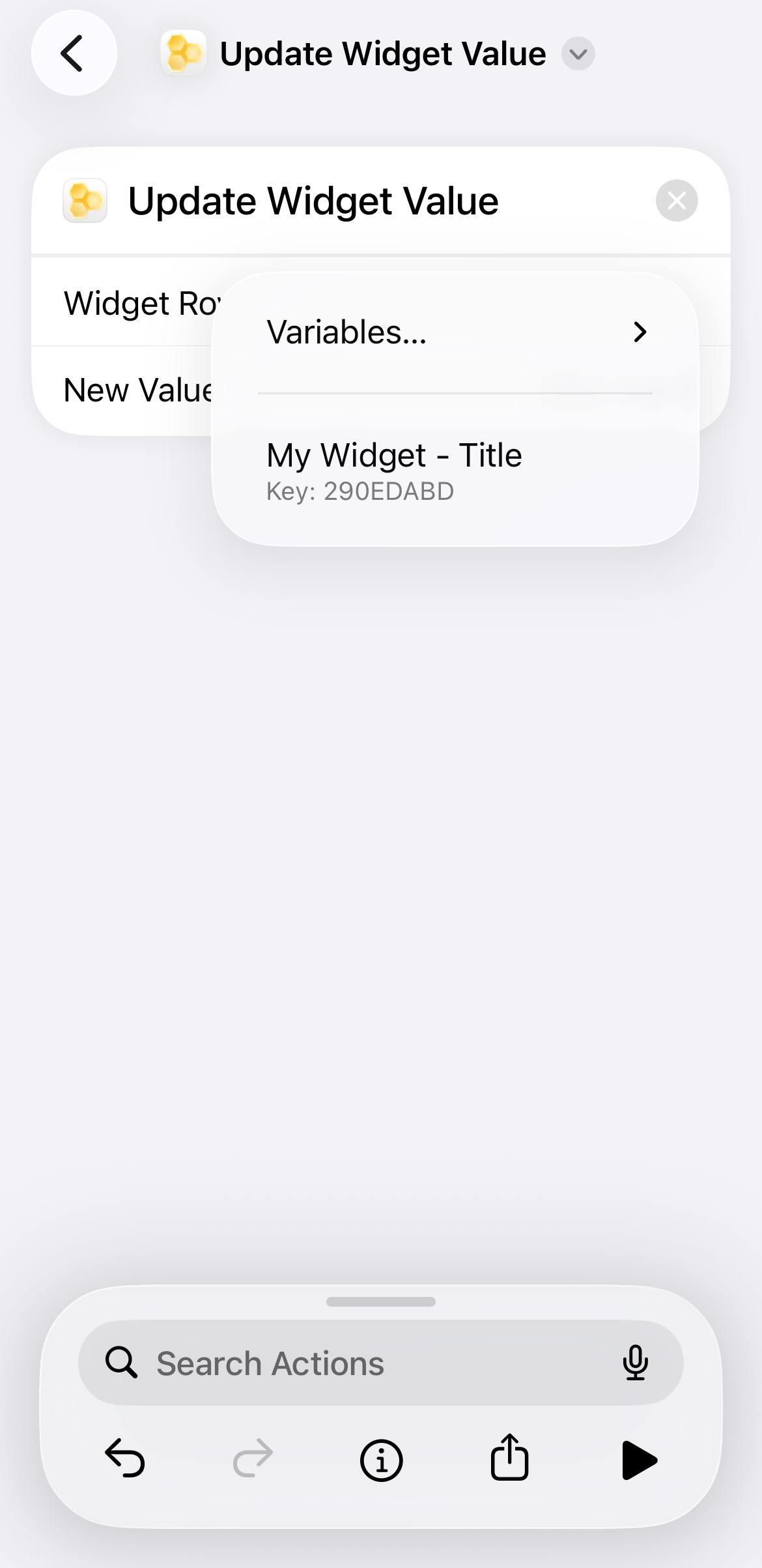
Choose Target Widget Data Row
Tap the blue Widget Row placeholder text to open the selection menu, then tap the specific widget data row you want to update (e.g., My Widget - Title).
🔍 Tap to enlarge
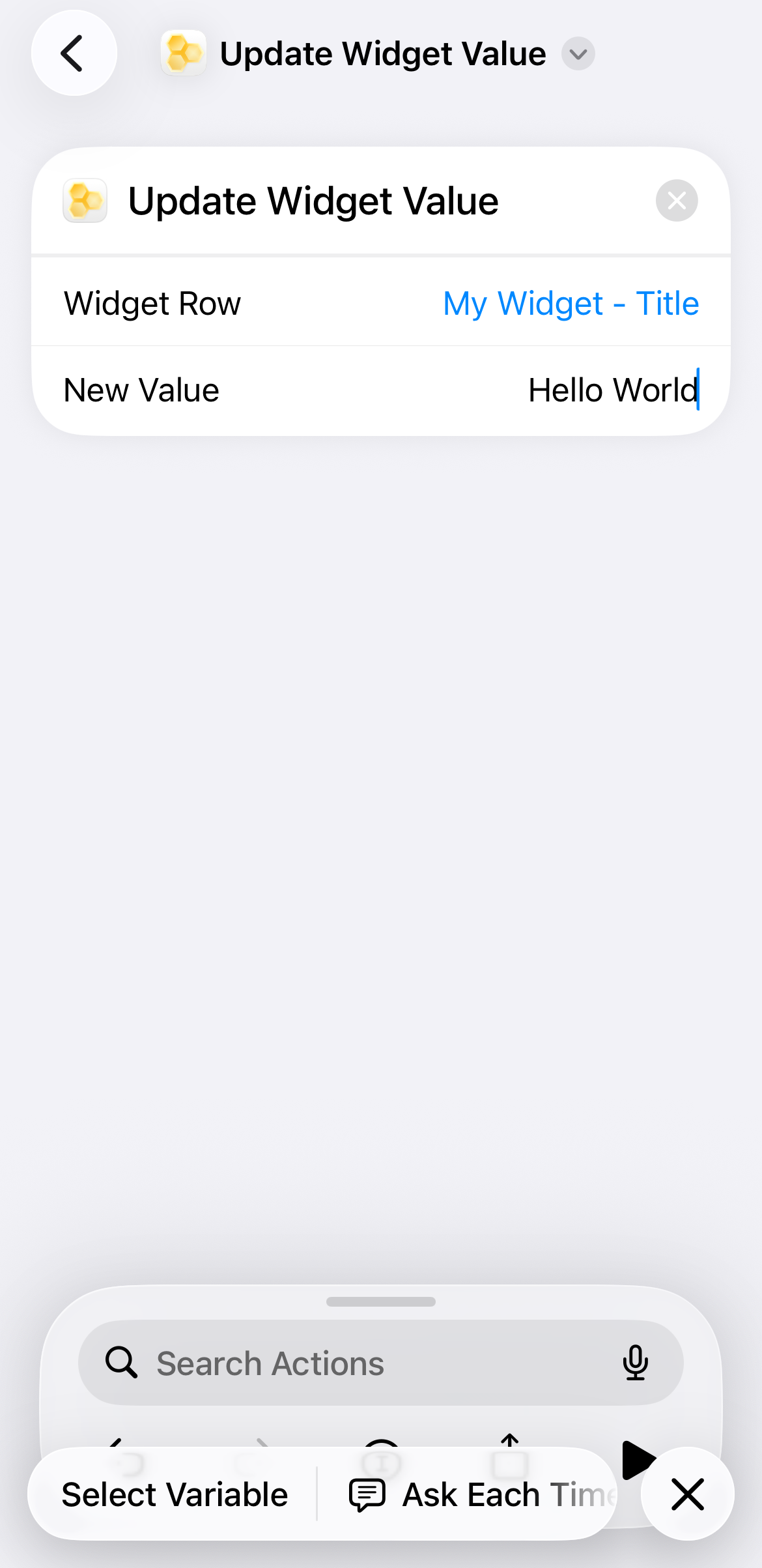
Assign New Value to Selected Row
Tap the New Value field and enter the desired text or variable (e.g., Hello World) to update the chosen widget row.
🔍 Tap to enlarge
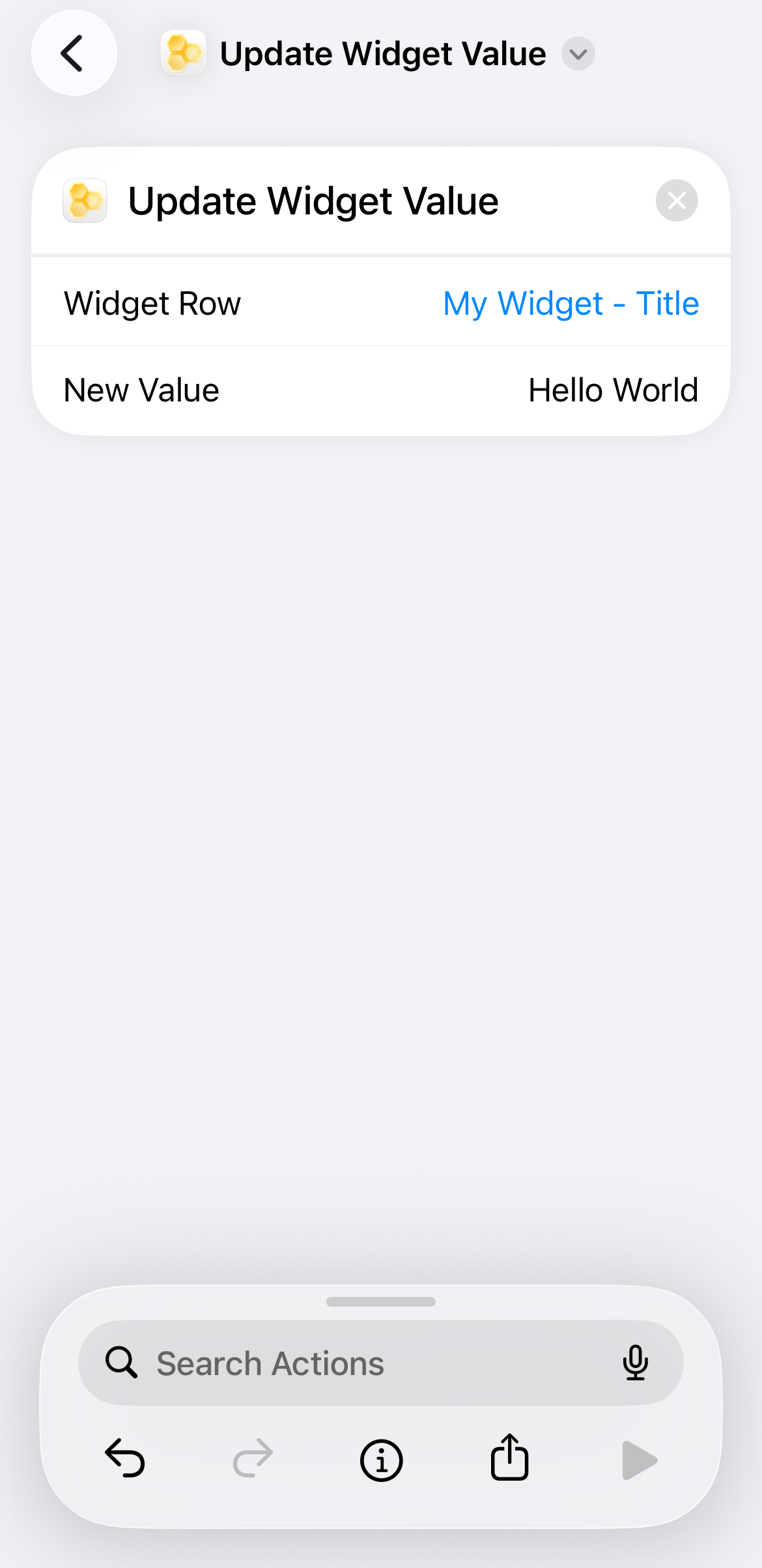
Execute the Shortcut Test
Tap the Play button in the bottom-right controls bar to run your shortcut and write the new value to the chosen widget data row.
🔍 Tap to enlarge
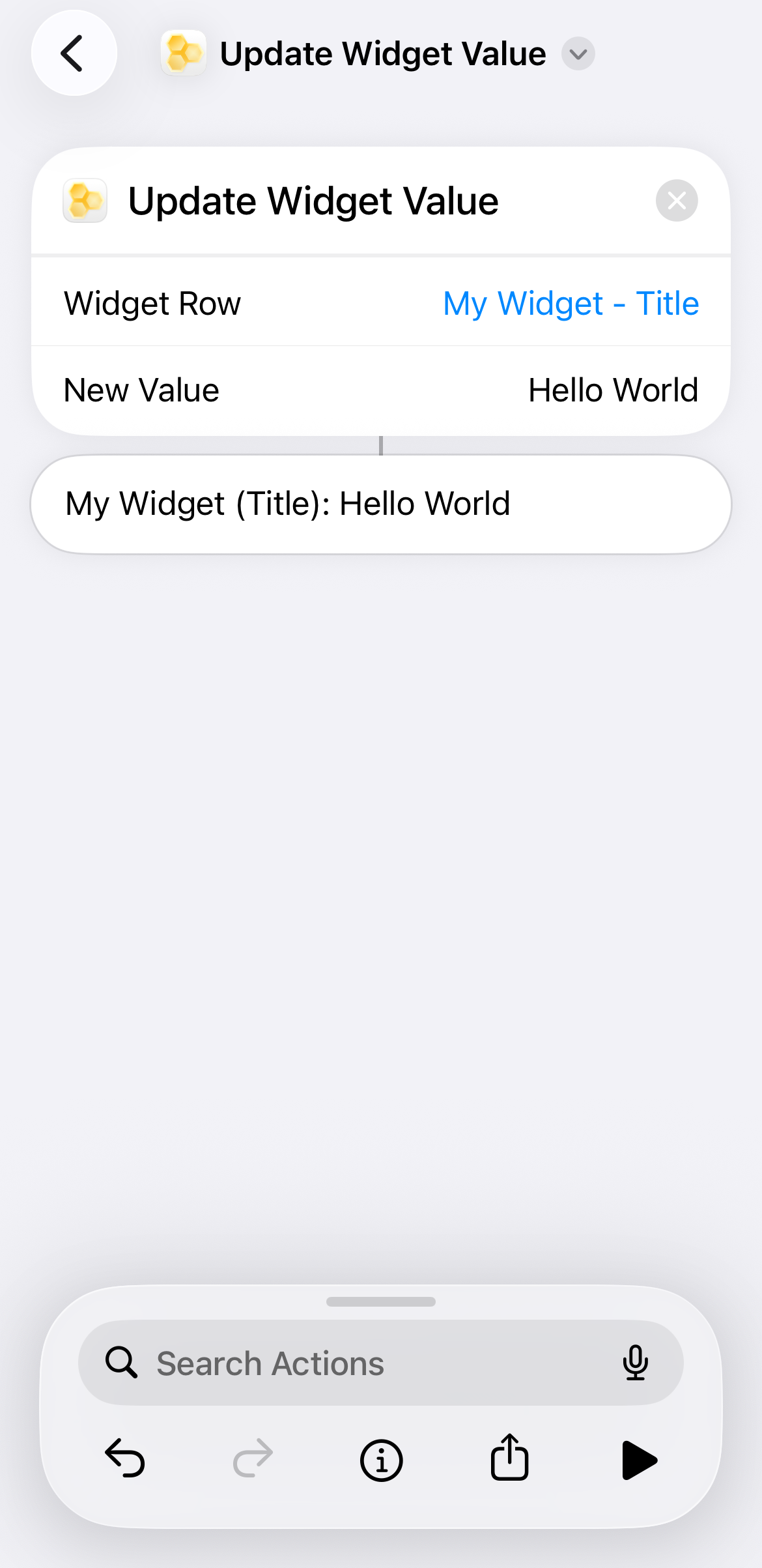
Confirm Execution Output
Review the execution output card generated directly below the action block (e.g., My Widget (Title): Hello World) to confirm the targeted row received the data.
🔍 Tap to enlarge
Verify Live Widget Row Update
Return to your Home Screen to see your WidgetBee widget's data row immediately updated with the new input.

🔍 Tap to enlarge