How to Update Your Widget by Widget Data Row Key in Shortcut
Learn how to dynamically update specific widget fields using unique widget data row keys in the Shortcut app with WidgetBee.
Check Initial Widget State
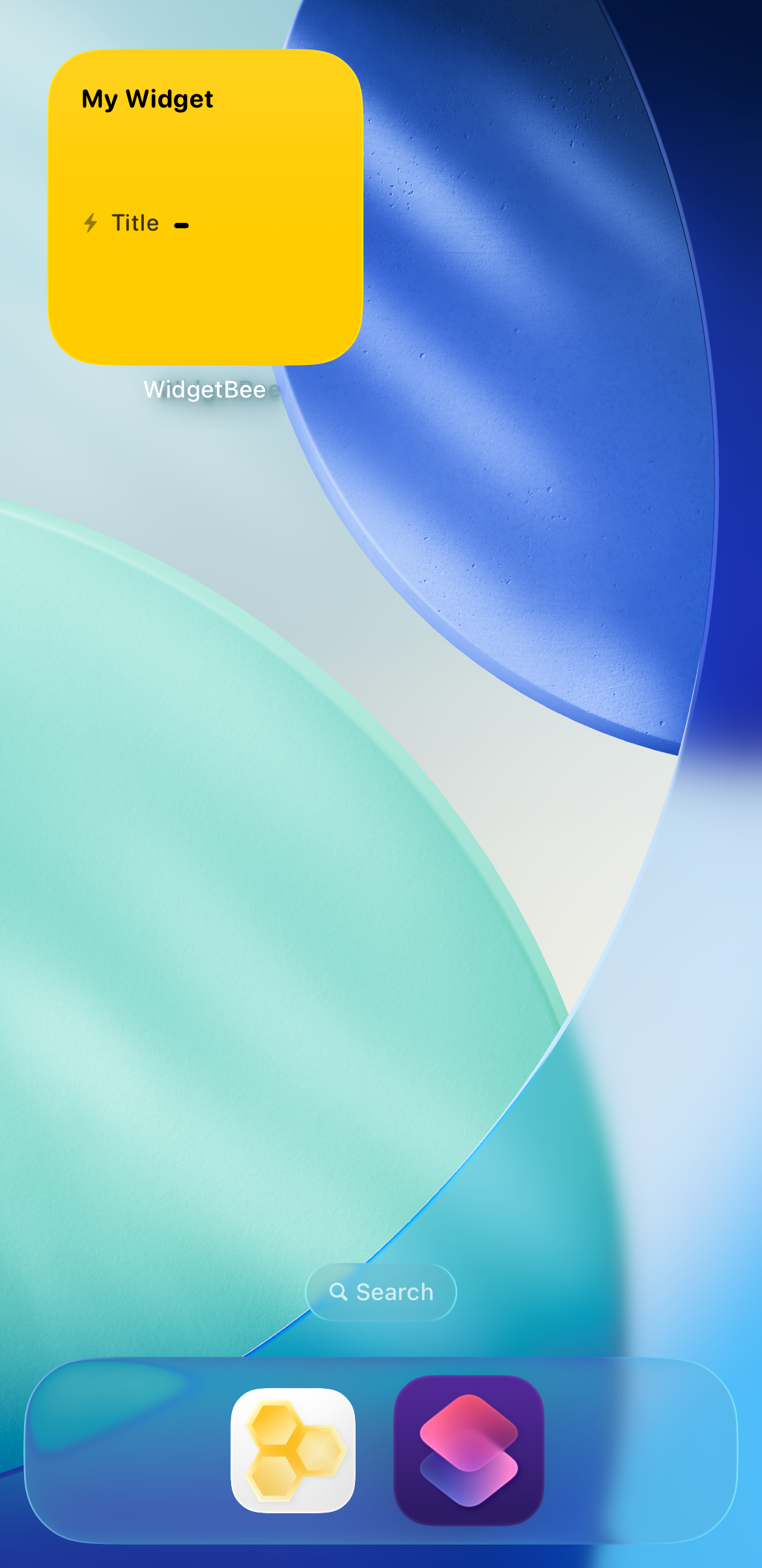
Locate your WidgetBee widget on your Home Screen and review the row value you plan to update.
🔍 Tap to enlarge
Create a New Shortcut
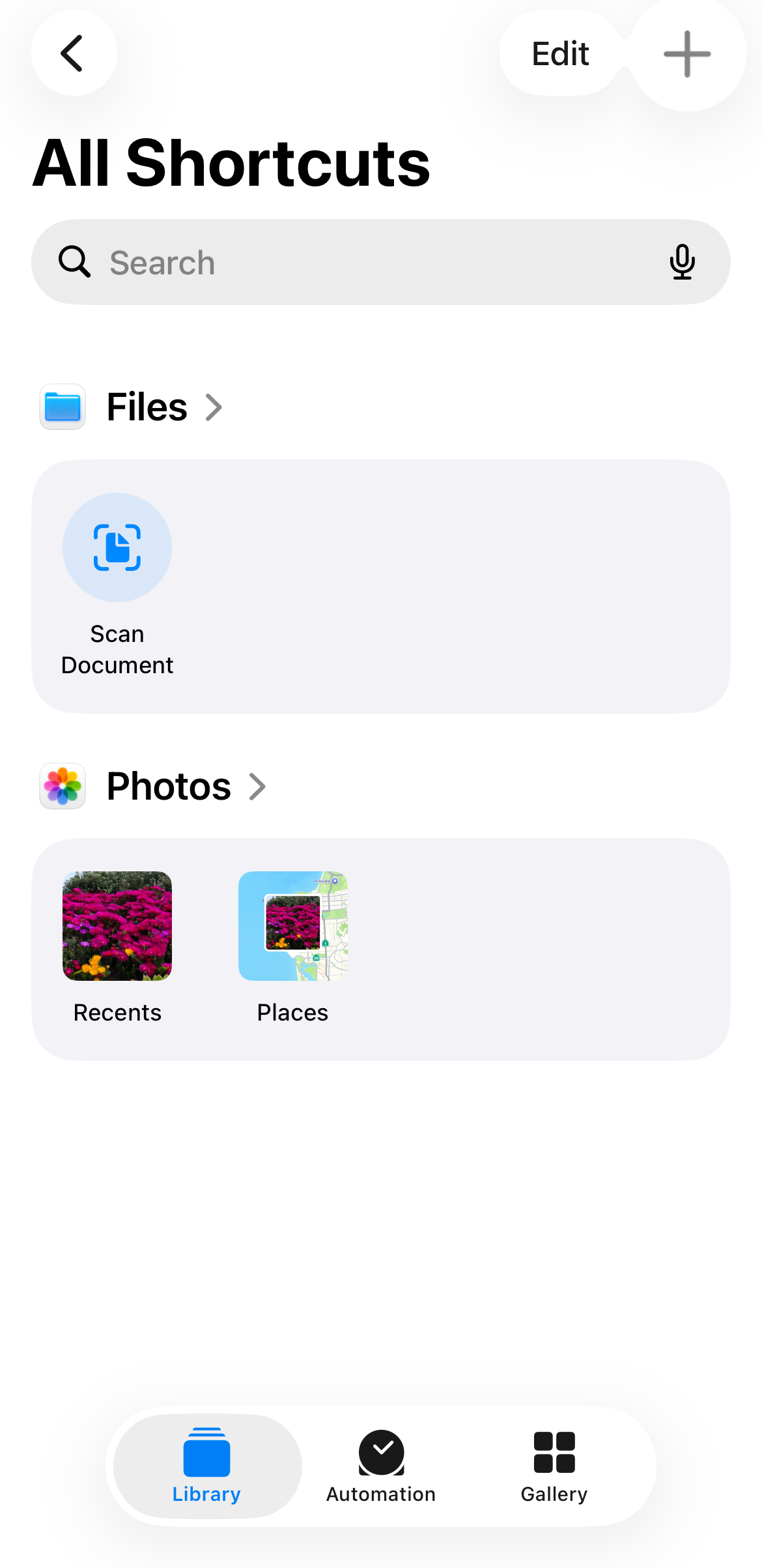
Open the Shortcut app and tap the + (plus) button in the top-right corner to create a new shortcut workflow.
🔍 Tap to enlarge
Search for WidgetBee Actions
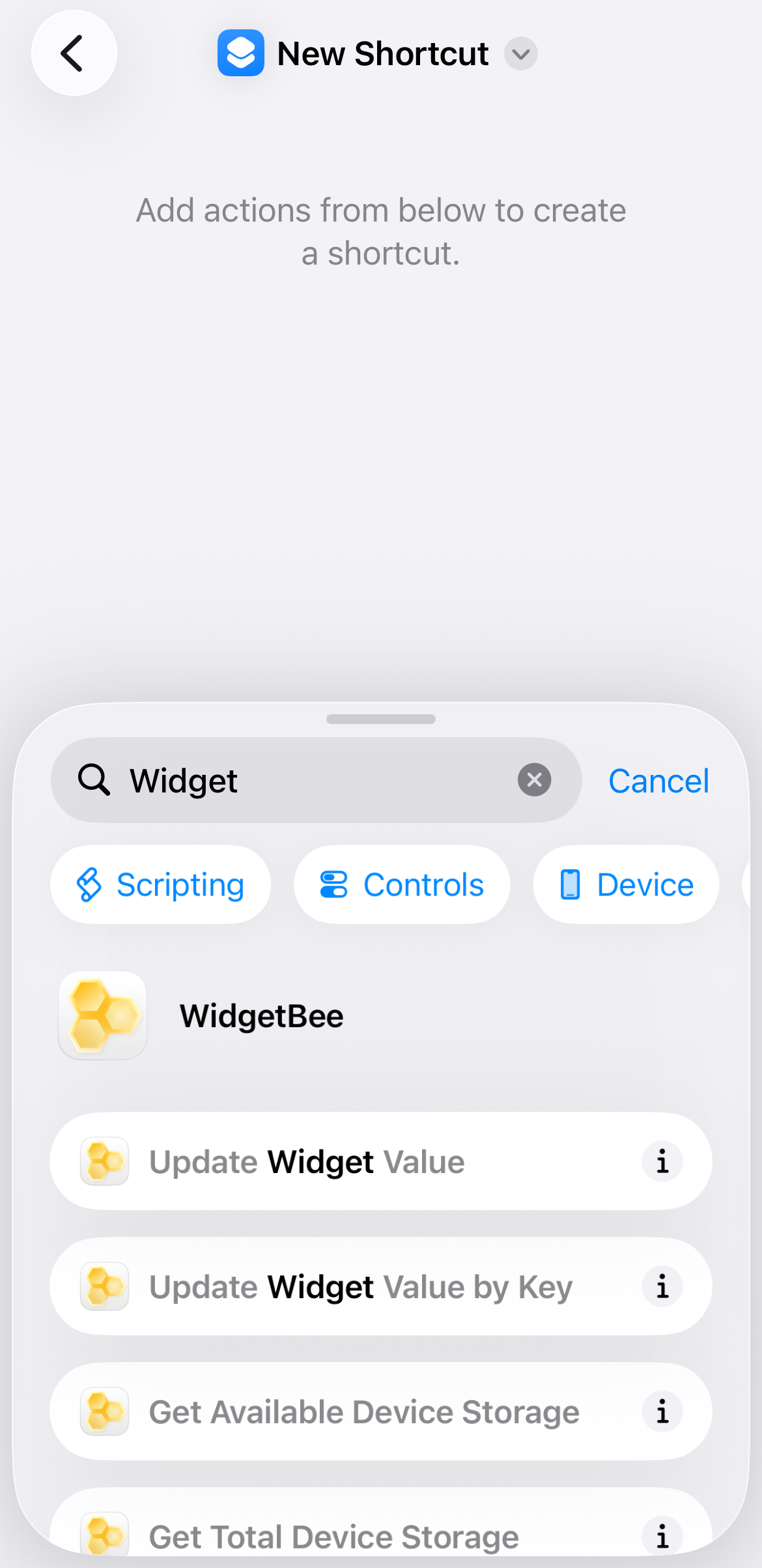
Search for WidgetBee in the action drawer at the bottom of the screen.
🔍 Tap to enlarge
Select "Update Widget Value by Key"
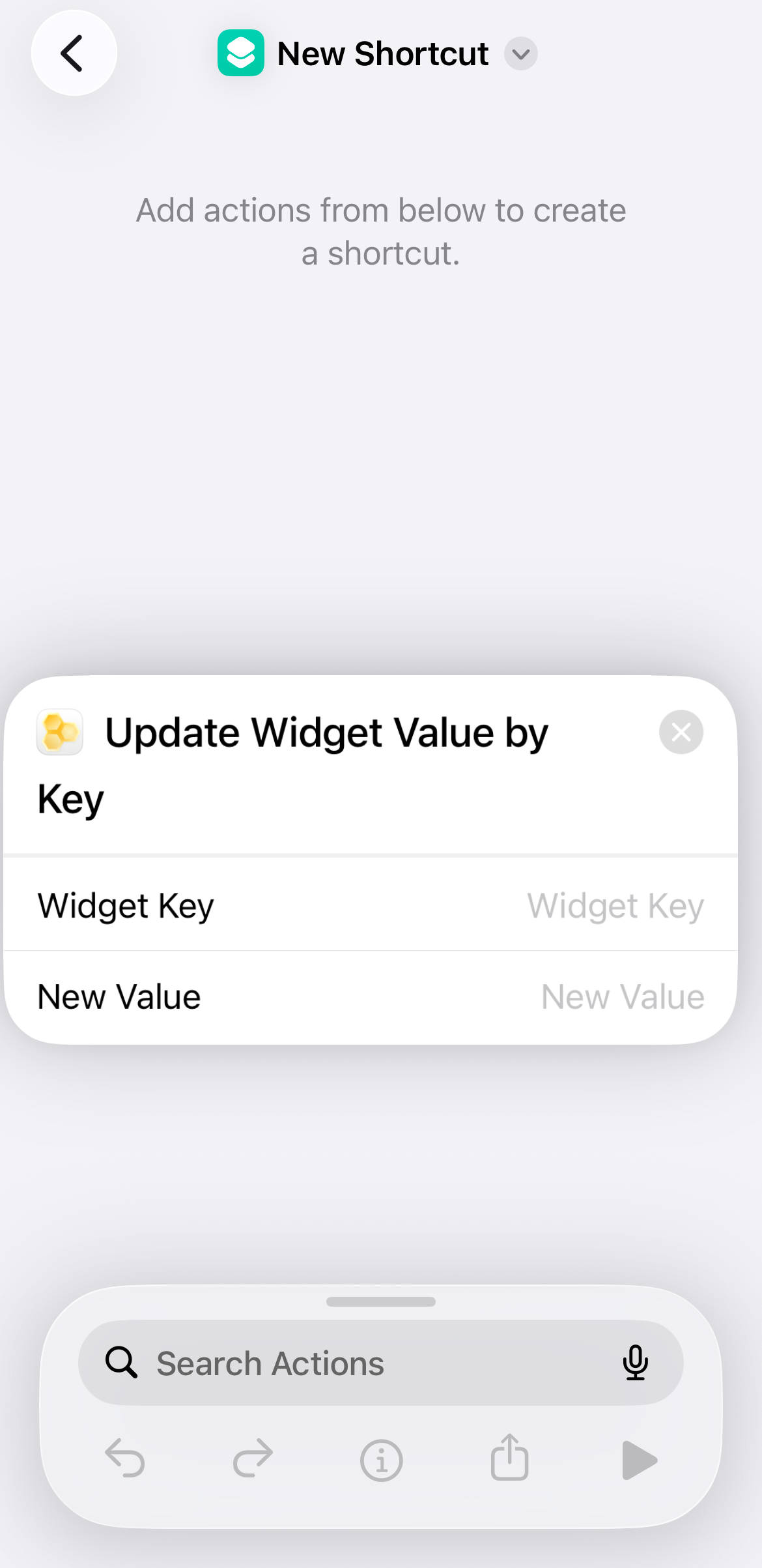
Tap Update Widget Value by Key from the WidgetBee action list to add it to your builder canvas.
🔍 Tap to enlarge
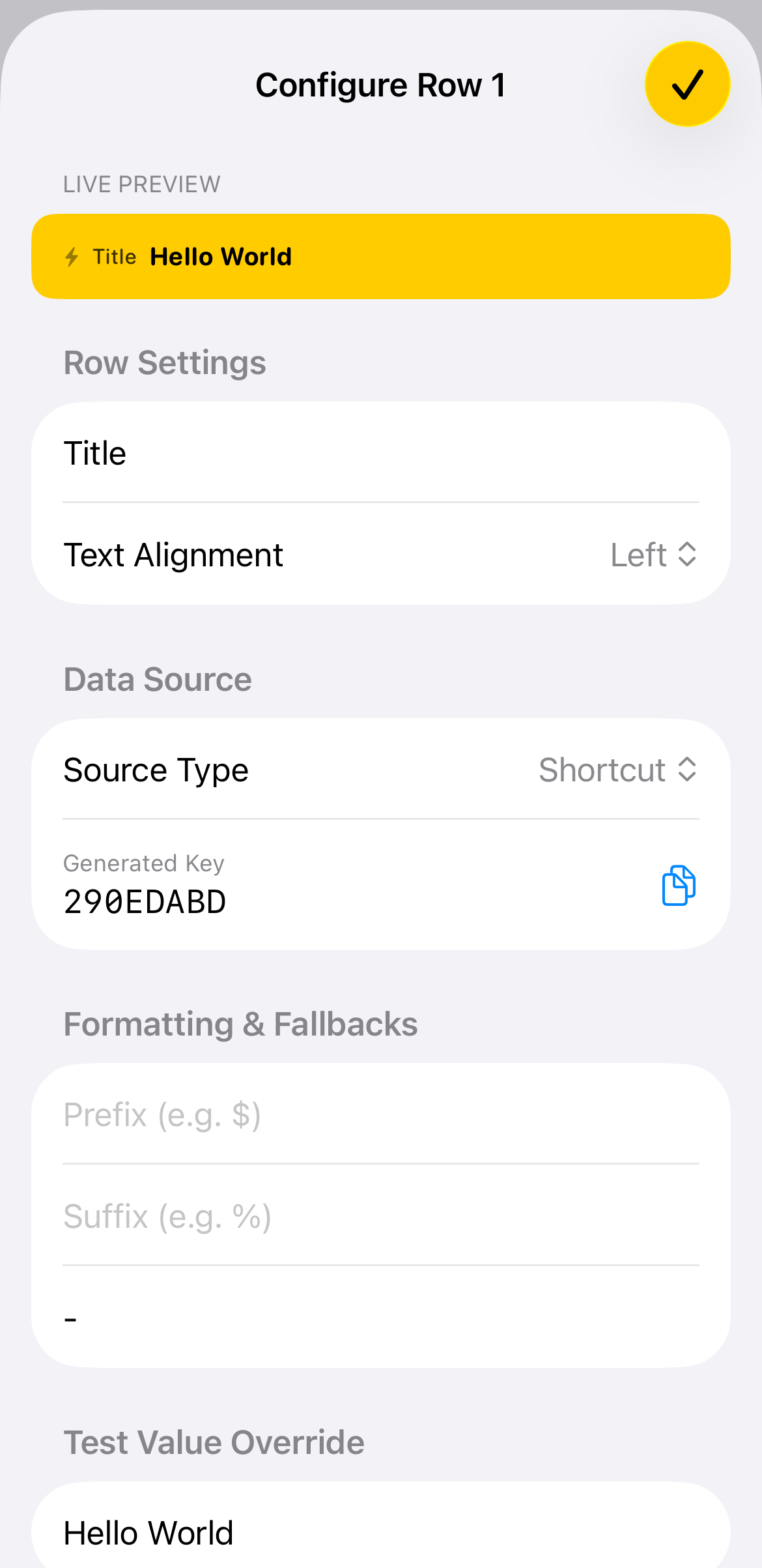
Copy the Unique Generated Key
Open the WidgetBee configuration page for your specific row and copy its unique Generated Key (e.g., 290EDABD).
🔍 Tap to enlarge
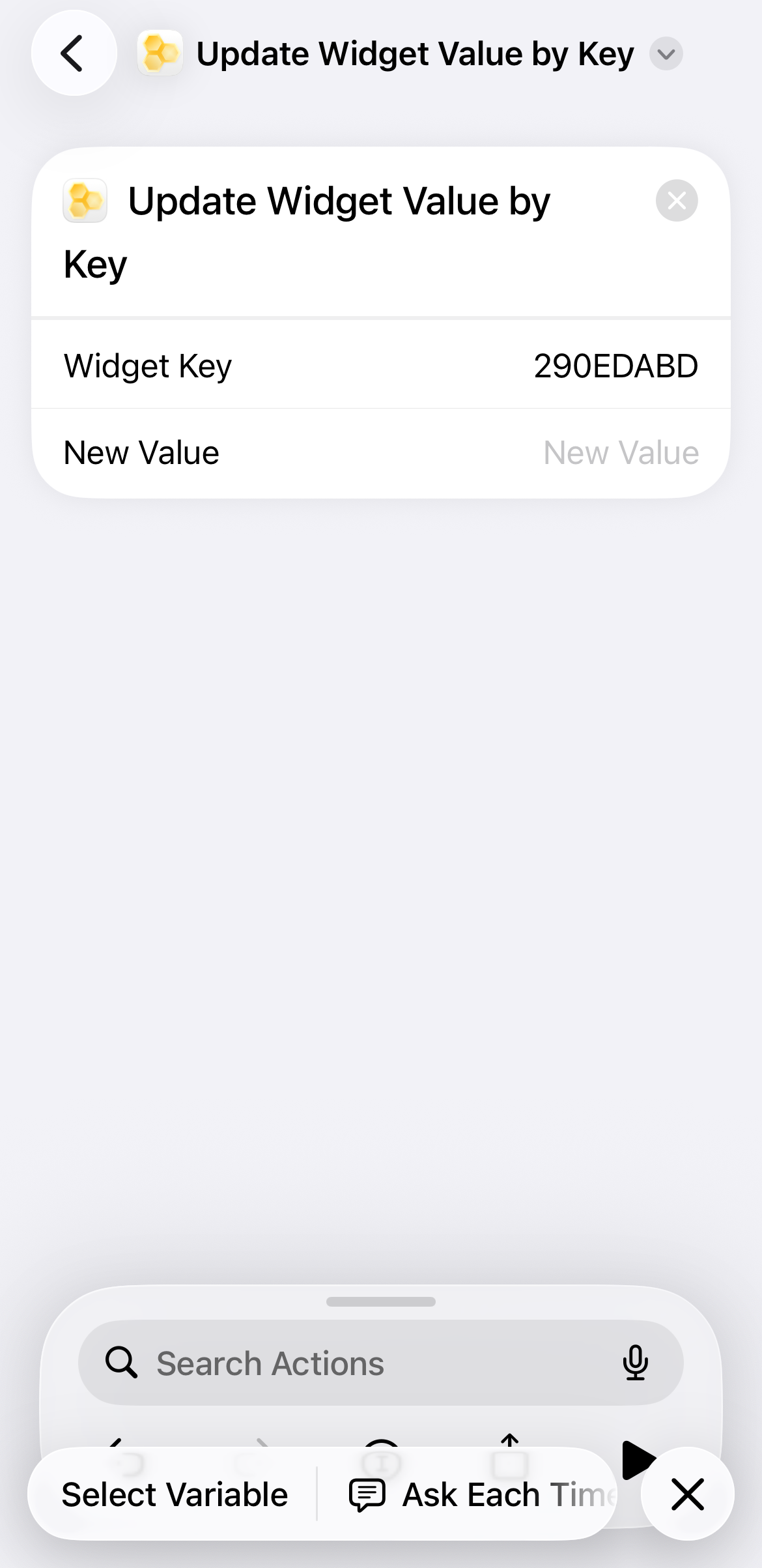
Input Widget Key into Action
Return to Shortcut and paste or type the generated key into the Widget Key field of the action block.
🔍 Tap to enlarge
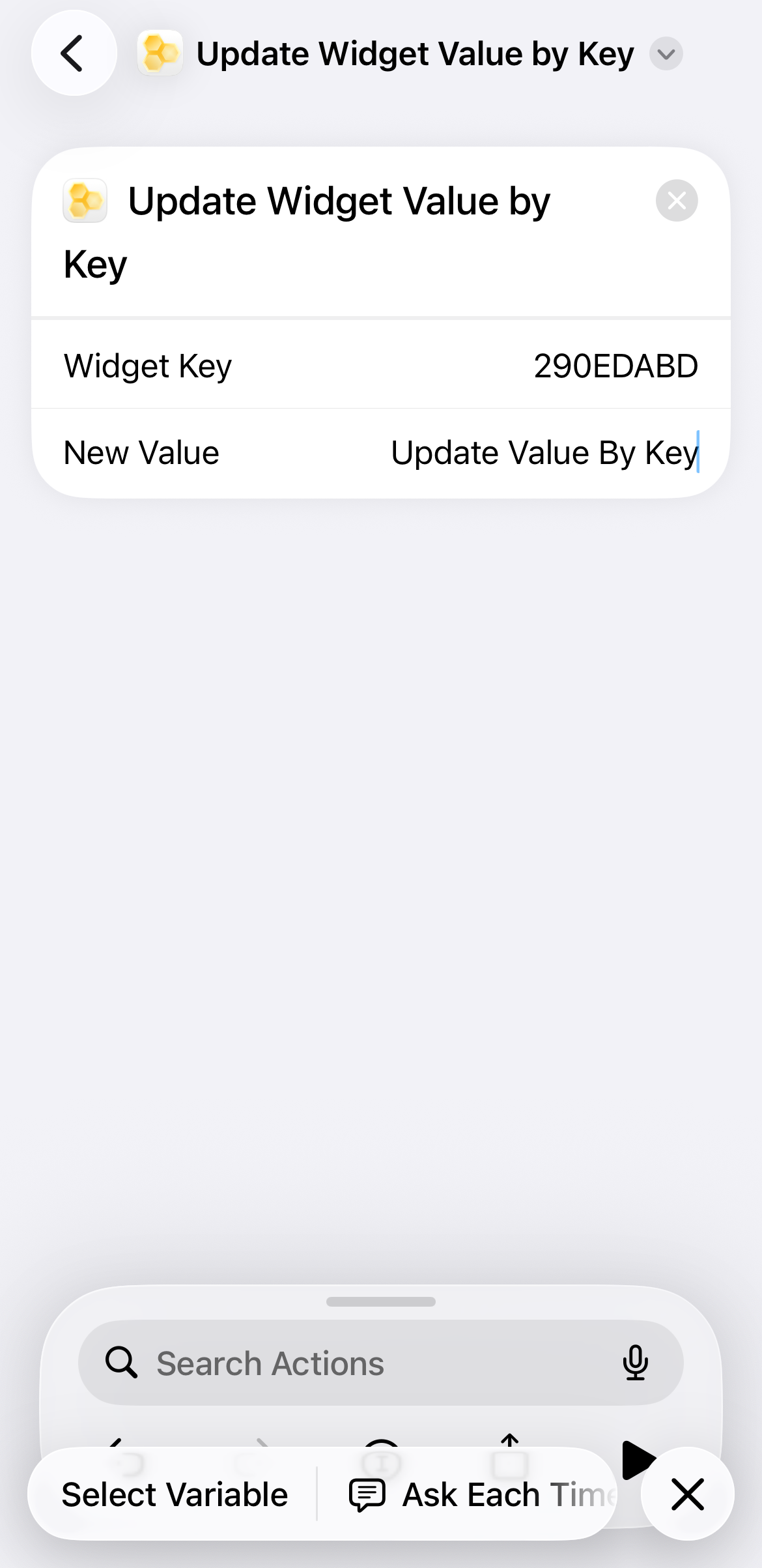
Set New Value
Tap the New Value field and enter your desired content (e.g., Update Value By Key).
🔍 Tap to enlarge
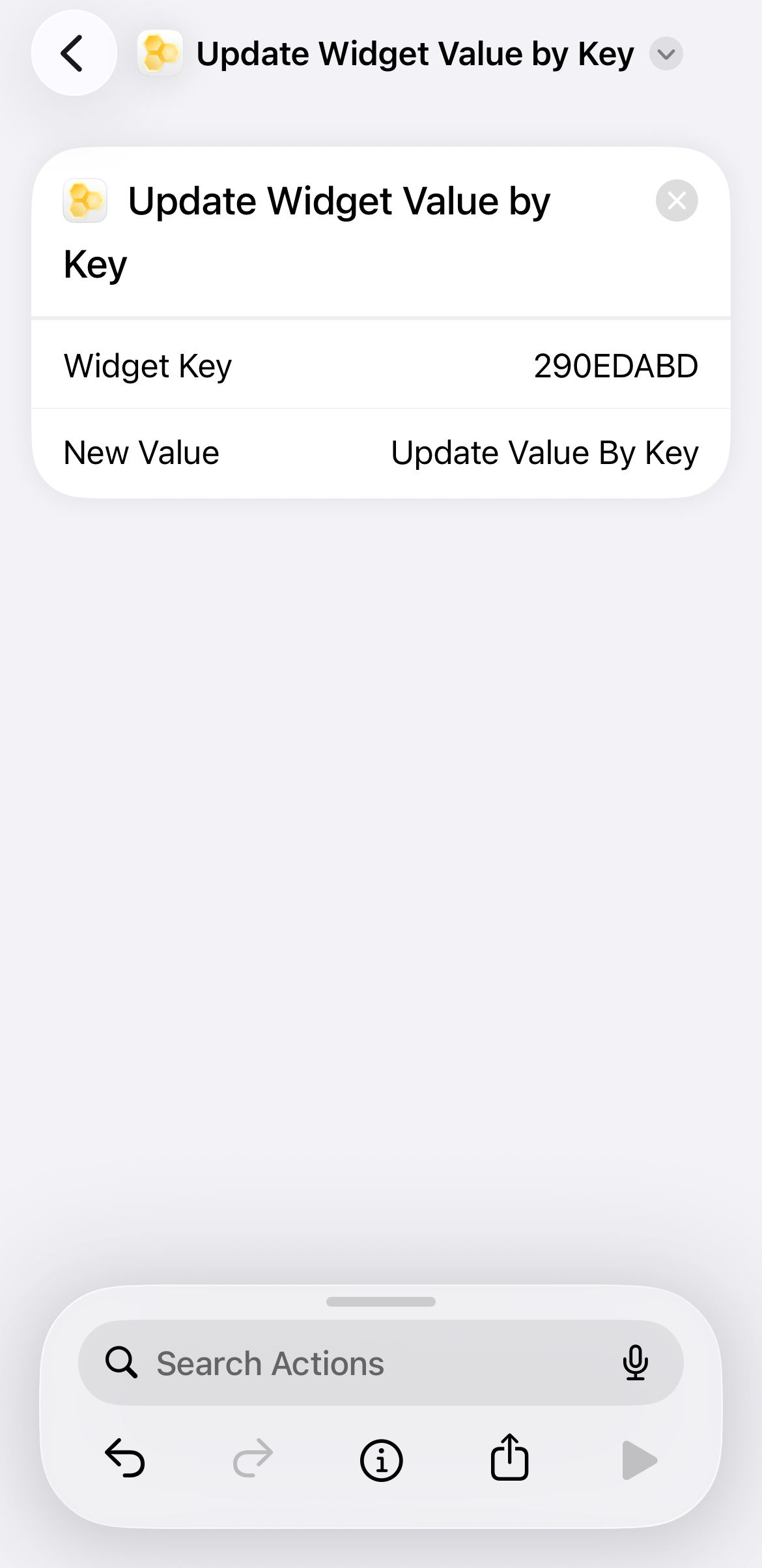
Run the Shortcut
Tap the Play icon in the bottom-right corner to execute the update.
🔍 Tap to enlarge
Confirm Execution Output
Verify the output confirmation banner displayed directly beneath the action block.
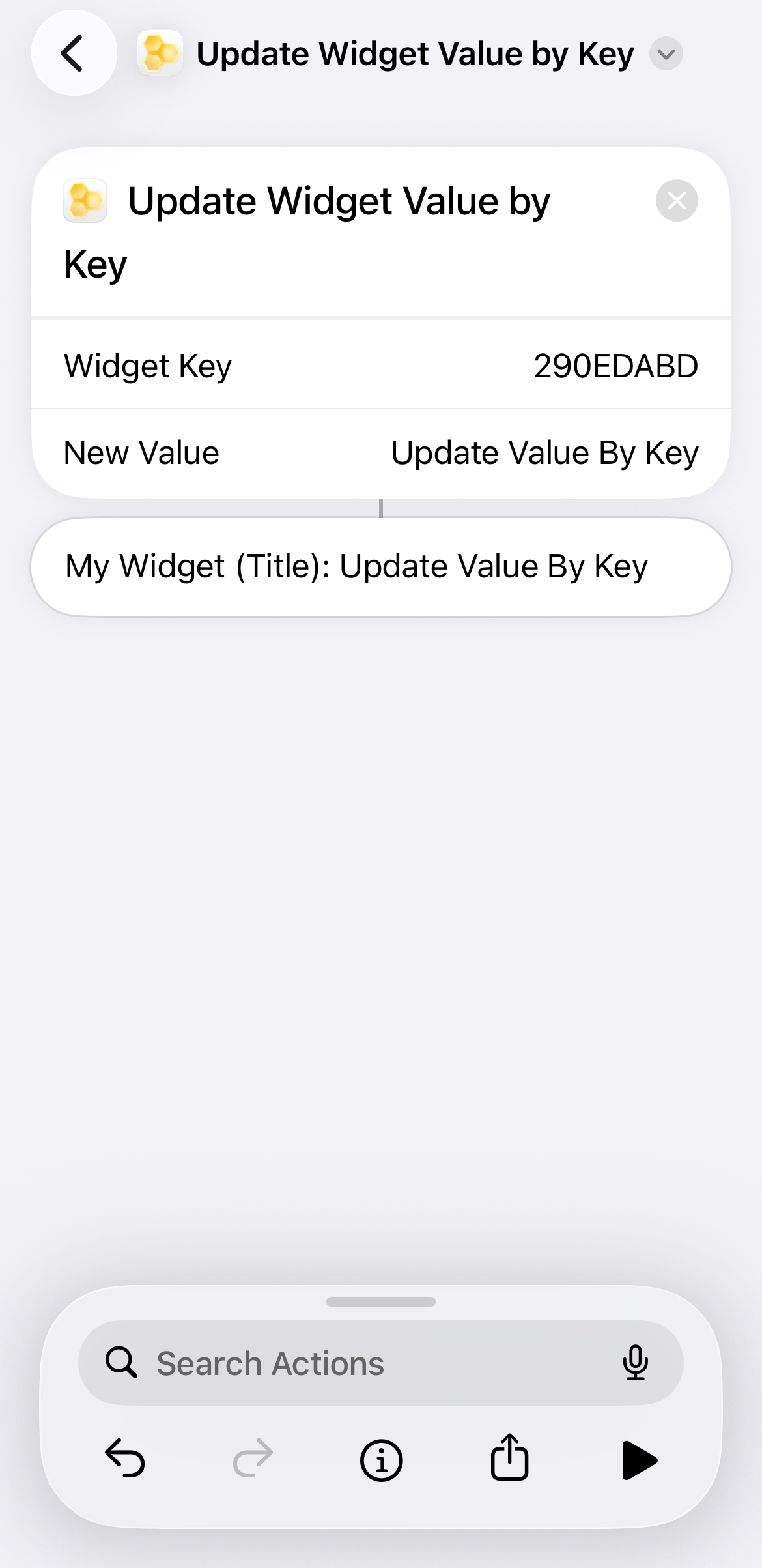
🔍 Tap to enlarge
Verify Live Widget Update
Return to your Home Screen to confirm your widget reflects the new value assigned to that data row key.
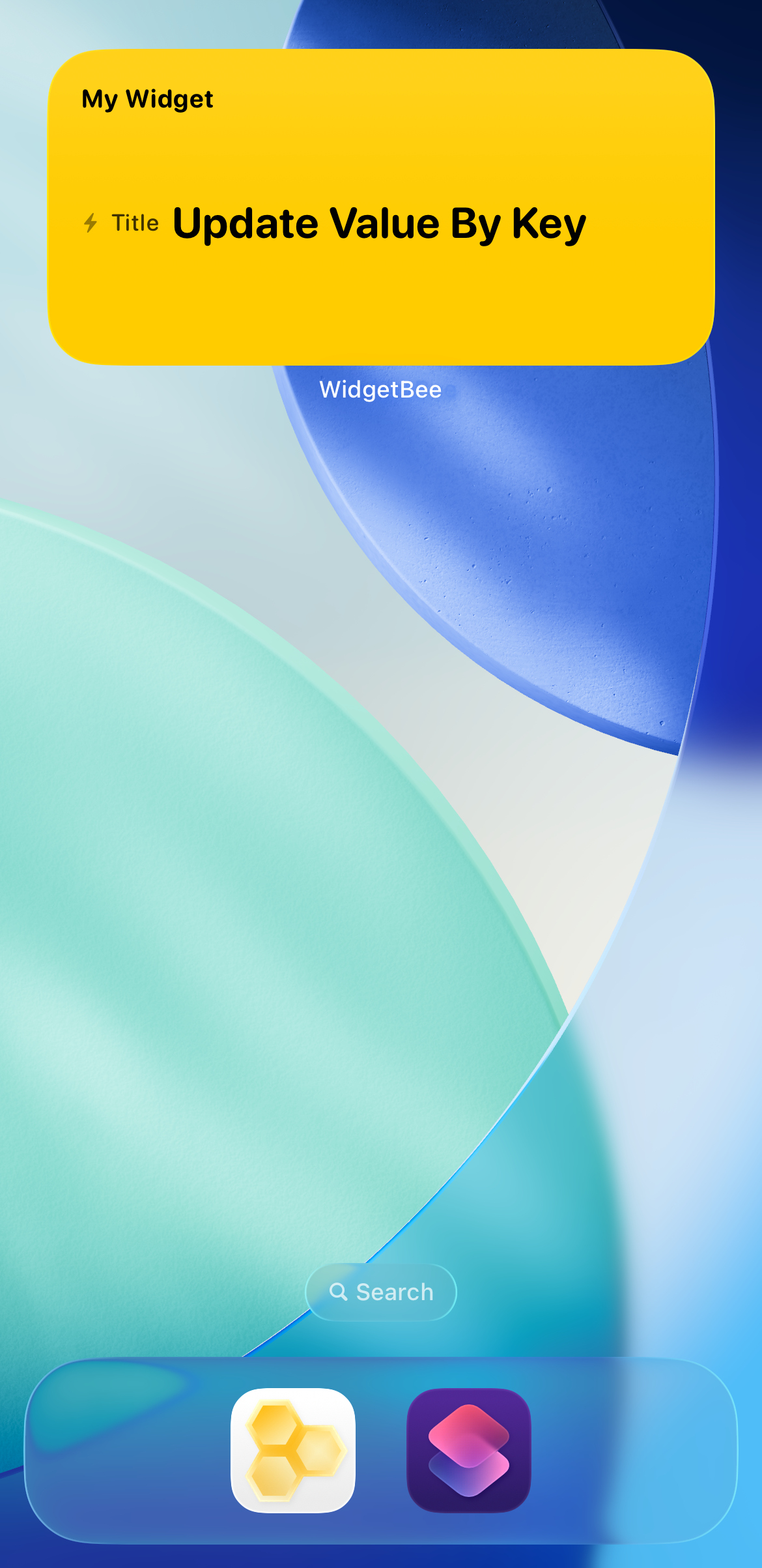
🔍 Tap to enlarge